
This article contains affiliate links. If you make a purchase through one of these links, we may earn a commission at no additional cost to you.
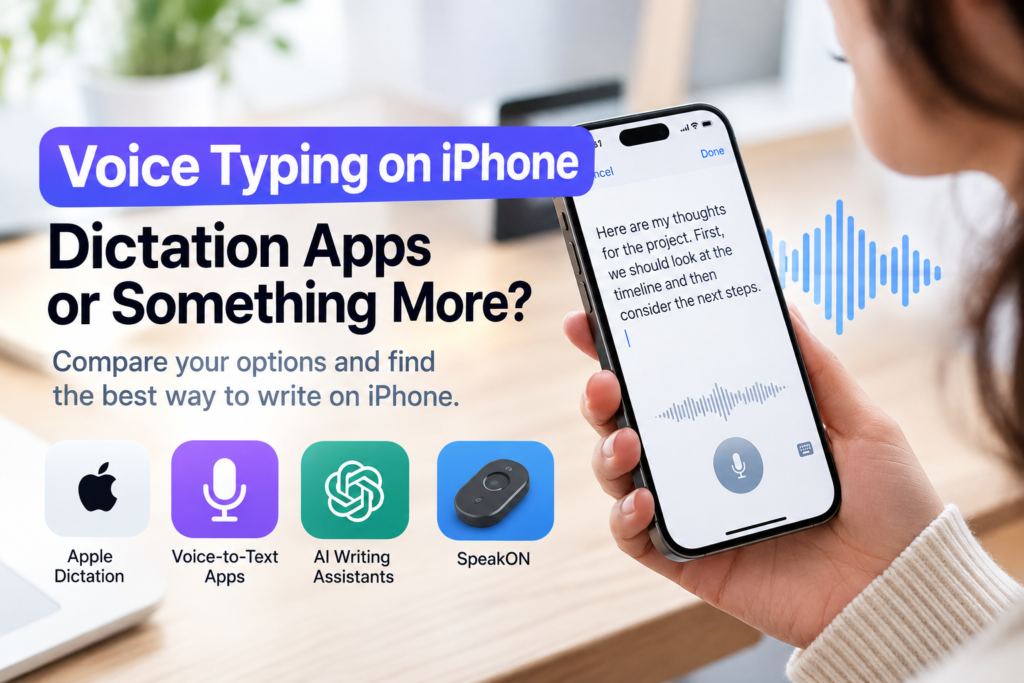
Voice typing on iPhone can be much faster than tapping out every word, especially when you’re writing a longer message, replying to an email, or trying to capture an idea before you forget it. But there are now several ways to do it, from Apple’s built-in Dictation to dedicated transcription apps and AI-assisted voice tools.
The best option isn’t necessarily the one with the most features. If you only dictate an occasional text message, the tools already built into your iPhone may be all you need. If you regularly dictate longer content and then spend time correcting or reorganizing it, a more specialized option may be useful.
Here’s how the main approaches compare and where each one makes the most sense.
Voice Typing on iPhone: What Are Your Main Options?
| Option | Best For | Main Advantage | Main Limitation |
|---|---|---|---|
| Apple Dictation | Everyday messages and notes | Free and built into iPhone | Spoken text may need editing |
| Voice-to-Text Apps | Meetings and longer recordings | Better transcription tools | Often requires another app |
| AI Writing Assistants | Rewriting rough dictated text | Can improve structure and tone | Adds another step |
| SpeakON | Frequent voice-based writing | Combines voice input with text cleanup | Requires additional hardware |
| Traditional Typing | Short or precise writing | Direct control over every word | Slower for longer thoughts |
These options aren’t mutually exclusive. You might dictate a long email, type a short reply, and use a transcription app for a meeting—all on the same day.
How Does Voice Typing on iPhone Work?
At its simplest, voice typing converts what you say into written text.
Apple includes Dictation directly in the iPhone keyboard. When you’re in a text field, you can tap the Dictate button and start speaking instead of entering every word manually. Apple also allows Dictation and the keyboard to be used together, so you can speak a paragraph and then type a correction without completely changing your workflow.
Apple explains the feature and its available commands in its official iPhone Dictation guide.
The advantage becomes clearer with longer thoughts. Speaking a multi-sentence email can be quicker than entering it on a small touchscreen, even after allowing some time to review the result.
However, speech-to-text doesn’t automatically mean finished writing. Natural speech often contains pauses, repeated words, unfinished thoughts, and sentences that sound fine aloud but look awkward on the screen. The amount of editing required afterward is one of the biggest differences between basic dictation and more advanced voice-writing tools.
1. Apple Dictation: The Easiest Place to Start
For most iPhone users, Apple Dictation is the sensible starting point because it’s already available and doesn’t require another app or accessory.
It’s particularly useful for everyday tasks. You can dictate a text message, create a reminder, enter a search, write a note, or get the first draft of an email onto the screen without using the keyboard for every word.
The biggest advantage is convenience. There is almost nothing new to learn, and you can switch between speaking and typing as needed.
For short messages, that’s often enough. There’s little benefit in making a simple task more complicated when the built-in feature already handles it well.
Where Apple Dictation Can Feel Limiting
The limitations become more noticeable with longer or less structured speech.
People don’t normally speak in perfectly edited paragraphs. We repeat ourselves, change direction halfway through a sentence, use filler words, and occasionally remember an important point after we’ve already moved on.
That means a long dictated message may still require a round of editing before it’s ready to send.
This doesn’t make Dictation ineffective. It simply means that the time saved by speaking can sometimes be partly offset by the time spent cleaning up the result.
2. Voice-to-Text Apps: Better for Longer Transcriptions
Dedicated voice-to-text apps serve a somewhat different purpose.
They’re often more useful when you want to preserve and work with a longer recording, such as a meeting, interview, lecture, conversation, or extended personal note. In those situations, having a transcript you can return to may be more important than placing text immediately into an email or message.
The trade-off is that the workflow can involve more steps. You may need to record in one app, wait for the transcription, find the section you need, copy it, and then move it into another app.
For a lengthy recording, that’s perfectly reasonable. For a 20-second reply to an email, it may be unnecessary.
A useful question is therefore: Do you need a transcript, or do you simply want to write something without typing it?
Knowing the answer can prevent you from installing a feature-heavy transcription tool when ordinary Dictation would have done the job.
3. AI Writing Assistants: Better for Cleaning Up Rough Ideas
Another option is to separate voice input from editing.
You can dictate a rough message first and then use an AI writing assistant to organize it, shorten it, change its tone, or make it easier to read. This approach is useful when you know what you want to say but don’t want to spend time carefully composing every sentence on a phone.
For example, you could speak several unstructured thoughts about a project and then ask an AI tool to organize them into a concise email. The initial dictation captures the information, while the AI handles some of the editing.
This can work well, but it introduces another step. If you’re constantly copying dictated text into another tool, giving it instructions, reviewing the output, and moving it back to the original app, the workflow can start to feel inefficient.
AI is generally most useful when it removes repetitive work rather than creating additional steps. Our guide to the best AI productivity apps for Windows and Mac looks at that principle across a broader range of everyday tasks.
4. SpeakON: An Alternative for Frequent Voice Writers
SpeakON takes a slightly different approach by combining voice input with some of the cleanup that would normally happen afterward.
It’s an iPhone accessory that lets you press a button and speak, with the resulting text appearing in the app where you’re writing. It can also remove filler words and repetitions and organize spoken information into lists.
That may be useful if voice input is already a regular part of your day and editing the resulting text has become a repetitive task.
For occasional dictation, however, dedicated hardware may be unnecessary. Apple’s built-in Dictation is free and covers the basic need very well. SpeakON makes more sense as an alternative for people who frequently write by voice and want to reduce the amount of cleanup afterward.
Best for: Frequent voice users who regularly turn spoken thoughts into written messages, notes, or emails.
5. Traditional Typing: Sometimes the Keyboard Is Still Better
Voice isn’t automatically faster in every situation.
If you’re entering a password, correcting a name, writing a short search query, or sending a two-word response, reaching for the keyboard may still be the quickest option. Typing is also more practical when you’re somewhere that speaking aloud would be disruptive or inappropriate.
Privacy matters too. You probably don’t want to dictate a confidential email while sitting in a crowded waiting room or standing on public transportation.
Traditional typing also gives you precise control from the beginning. Instead of speaking a rough sentence and correcting it afterward, you can construct it exactly as you want.
The most efficient approach is therefore not to replace typing completely. It’s to use voice input when speaking is genuinely faster and return to the keyboard when it isn’t.
Which Voice Typing on iPhone Method Is Best for Different Situations?
The best method changes depending on what you’re doing.
For quick messages and everyday notes, start with Apple Dictation. For meetings and long recordings, a dedicated transcription app is usually a better fit. AI writing assistants become useful when the main challenge is reorganizing or polishing a rough draft rather than converting speech into text.
Tools that combine voice capture with cleanup can make sense when dictation is something you use throughout the day, but they shouldn’t be treated as essential equipment for every iPhone owner.
The simplest workflow that reliably gets the job done is usually the best one.
When Is Voice Typing on iPhone Actually Faster?
Voice typing is most useful when the amount of text in your head is much longer than what you want to enter manually. A detailed email, a note after a meeting, or an idea you want to capture quickly can often be spoken more naturally than typed on a small screen.
The advantage becomes smaller with short or precise input. Typing “yes,” entering an address, correcting a person’s name, or changing a number may be quicker with the keyboard. Voice input can also lose its advantage if you have to spend several minutes correcting what was transcribed.
A practical approach is to use voice for the first draft and the keyboard for small edits. You don’t have to commit to one method for the entire message.
Voice Typing on iPhone Works Best When You Speak Naturally
Trying to dictate as though you’re reading a carefully written document can actually make voice input harder to use. You may spend too much time thinking about punctuation and sentence structure instead of concentrating on what you want to say.
Start by expressing the main idea clearly. For an email, that might mean speaking the greeting, explaining what you need, adding the important details, and finishing with the next action. You can then review the result and tighten anything that sounds awkward.
This approach is particularly useful for capturing ideas. A thought that would take several minutes to carefully type can often be recorded in much less time, then organized afterward.
If you regularly capture notes and documents across several devices, having a sensible storage system matters as well. Our comparison of cloud storage services for individuals and small businesses looks at practical ways to keep files accessible without relying on a single device.
Accuracy Matters More Than Raw Speed
A voice tool isn’t really saving time if its output requires extensive correction.
Background noise, unusual names, technical terminology, accents, and poor microphone placement can all affect speech recognition. Even when individual words are recognized correctly, the resulting sentence may not express exactly what you intended.
For important communication, always read the final text before sending it. Pay particular attention to names, dates, meeting times, prices, addresses, account information, and anything else where one incorrect word or number could cause a problem.
You should be even more careful when AI is involved. A tool that cleans up or rewrites dictated text may make the result easier to read, but you still need to confirm that the meaning hasn’t changed.
Don’t Forget About Privacy
Voice typing introduces a privacy consideration that ordinary keyboard input doesn’t: people around you may hear what you’re saying.
Dictating a shopping list at home is very different from speaking confidential work information in an airport lounge. Even if the software itself has appropriate privacy protections, anyone physically nearby may still hear your conversation.
The service processing your voice also matters. Before using a voice or transcription tool for sensitive information, check how recordings and transcripts are processed, stored, and deleted.
Apple provides information about its privacy approach and how it handles features such as Siri and Dictation in its Siri, Dictation & Privacy information.
For highly confidential material, typing may remain the better choice.
Do You Need a Separate Voice-Typing Tool?
Probably not if you only dictate occasionally.
Start with the features already available on your iPhone. If Dictation reliably captures your messages and the corrections are minor, there isn’t much reason to make the workflow more complicated.
A dedicated transcription app becomes more useful when you regularly need full transcripts of longer recordings. AI writing assistants can help when your main problem is organizing or rewriting rough text. A more integrated voice tool may be worth considering when you dictate frequently and repeatedly spend time cleaning up the result.
The deciding factor shouldn’t be whether a product has impressive features. It should be whether those features remove a problem you actually encounter.
A Simple Voice-Typing Workflow to Try
You can test whether voice typing genuinely improves your workflow without buying anything.
For the next few days, use Apple Dictation whenever you have more than a sentence or two to write. Speak the first draft, review it, and make small corrections with the keyboard. Continue typing normally for short replies and situations where speaking isn’t convenient.
Pay attention to where you lose time. If recognizing your speech is the problem, changing tools may help. If organizing your thoughts is the problem, an AI writing assistant may be more useful. If the repeated cleanup between speaking and sending is the problem, an option that combines those steps may make more sense.
This is a better way to choose technology than starting with a product and trying to find a reason to use it.
Frequently Asked Questions
What is the best voice typing app for iPhone?
There isn’t one best option for everyone. Apple’s built-in Dictation is a good starting point for everyday messages and notes because it doesn’t require another app. Dedicated transcription apps are generally more useful for longer recordings, while AI-assisted tools can help when dictated text needs more editing or organization.
Is voice typing on iPhone free?
Yes. Apple’s built-in Dictation is available as part of iOS, so you don’t need to buy a separate voice-typing app simply to convert speech into text.
Is voice typing faster than typing?
It can be, particularly for longer messages and first drafts. For short replies, corrections, names, numbers, or precise information, the keyboard may still be faster.
Can I use voice typing for emails on an iPhone?
Yes. You can use Dictation wherever supported text entry is available, including when composing emails. For longer messages, it can be useful to dictate the first draft and then use the keyboard to make precise corrections.
Are AI voice-writing tools better than regular dictation?
Not necessarily. Regular dictation may be sufficient if you mainly want speech converted into text. AI-assisted tools become more useful when you also want help cleaning up, restructuring, or changing the tone of what you’ve said.
Should I use voice typing for confidential information?
Be cautious. People nearby may hear what you dictate, and different services have different policies for processing and retaining voice data. For sensitive information, check the service’s privacy practices and consider whether typing is more appropriate.
Final Thoughts
Voice typing on iPhone works best when it solves a specific problem rather than simply replacing the keyboard. Apple’s built-in Dictation is the logical starting point because it’s convenient, free, and sufficient for many everyday messages and notes.
Dedicated transcription apps make more sense for longer recordings, while AI-assisted writing tools can help when rough speech needs significant editing. Other voice-input options may be worthwhile for people who dictate throughout the day, but additional software or hardware isn’t necessary simply because it’s available.
Try the simplest option first. If it saves time, keep using it. If you repeatedly encounter the same limitation, you’ll have a much clearer idea of what kind of tool is actually worth adding to your workflow.
Did this solve your problem?
Your answer helps Supportia prioritize updates. No account or email is required.