
Modern devices include built-in features for vision, hearing, mobility, speech, focus, and cognitive access. Start with the user’s goal and change one setting at a time.
Step-by-step checks
1. Define the barrier
Ask whether the difficulty is reading, locating the pointer, hearing speech, typing, touch accuracy, remembering steps, or managing distractions.
2. Use built-in accessibility settings
Open the device’s Accessibility settings and explore the relevant category. Built-in magnification, screen readers, captions, voice control, contrast, and text sizing are safer first steps than unknown utilities.
3. Test in real applications
A setting that looks good in Settings may behave differently in email, browser, banking, or video-call apps. Test the tasks that matter.
4. Preserve a way back
Record the original setting or change one option at a time. Make sure the user can still unlock and navigate the device.
5. Include privacy and independence
Choose features that let the person complete tasks independently where possible. Ask before enabling monitoring, cloud sharing, or remote assistance.
When to stop
For essential communication, work, education, or health access, consider an accessibility specialist or official disability-support service.
What to tell an expert
Share the device model, operating system, exact symptom or error, when it began, what changed beforehand, and which checks you completed. Do not send passwords, one-time codes, encryption recovery keys, or unnecessary personal files.
Official reference
This Supportia guide was prepared with current official guidance as a factual baseline. Interface names can still vary by device and version. Open the official reference.
Did this solve your problem?
Your answer helps Supportia prioritize updates. No account or email is required.
Related guides
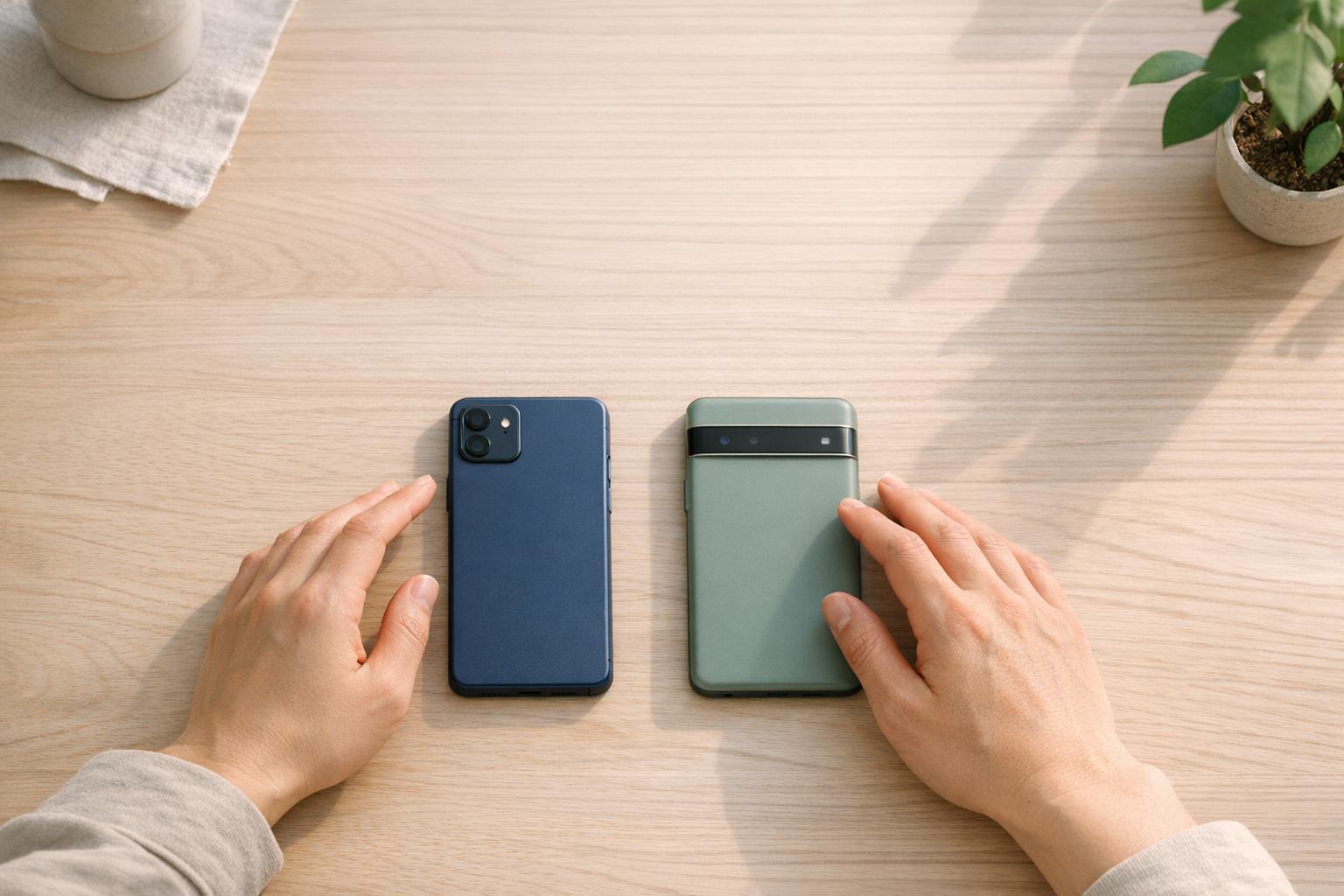
iPhone vs Android in 2026: Which One Is Finally Better?
Choosing between iPhone and Android in 2026 comes down to your priorities. Both platforms have reached a point where AI, hardware, and software updates…
Historical guide — verify current details7 Best VPNs for Windows 11 in 2026: Speed, Privacy, and Ease of Use
The best VPNs for Windows 11 should do more than simply change your IP address. A good Windows VPN should encrypt your internet connection…
Historical guide — verify current detailsBest PDF Editors for Windows and Mac in 2026
PDF files have become the standard format for contracts, invoices, reports, resumes, forms, and business documents. While almost every computer can open a PDF,…
Reviewed 2026-08-24