
Unexpected pop-ups that demand a phone call, remote access or urgent payment are a common support-scam pattern. Stop before interacting with the message.
Step-by-step checks
1. Do not call or click
Do not use the phone number, download link or close button inside the warning. Never provide payment details, passwords or one-time codes.
2. Close the browser safely
Try the normal browser close control. If the page traps the browser, use the operating system’s task controls to close the browser without accepting downloads.
3. Check what actually happened
If you only viewed the page and did not download, install, pay or grant access, the next steps differ from a completed remote-access session. Record what occurred.
4. Respond to exposure
If remote access or payment was granted, disconnect the device from the network, contact the payment provider and change affected passwords from a separate trusted device.
5. Use trusted support
Open the software or device maker’s official website yourself. Report scam activity through the appropriate consumer-protection or law-enforcement channel.
When to stop
If another person currently controls the device, disconnect it from the network and seek trusted in-person help. Do not argue with the caller while access remains active.
What to tell an expert
Share the device model, operating system, exact symptom or error, when it began, what changed beforehand, and which checks you completed. Do not send passwords, one-time codes, encryption recovery keys, or unnecessary personal files.
Official reference
This Supportia guide was prepared with current official guidance as a factual baseline. Interface names can still vary by device and version. Open the official reference.
Did this solve your problem?
Your answer helps Supportia prioritize updates. No account or email is required.
Related guides
How to Recognize a Tech-Support Scam
Unexpected urgency, remote-access requests, gift-card payment, and claims that only the caller can see a virus are strong warning signs.
Reviewed 2026-08-23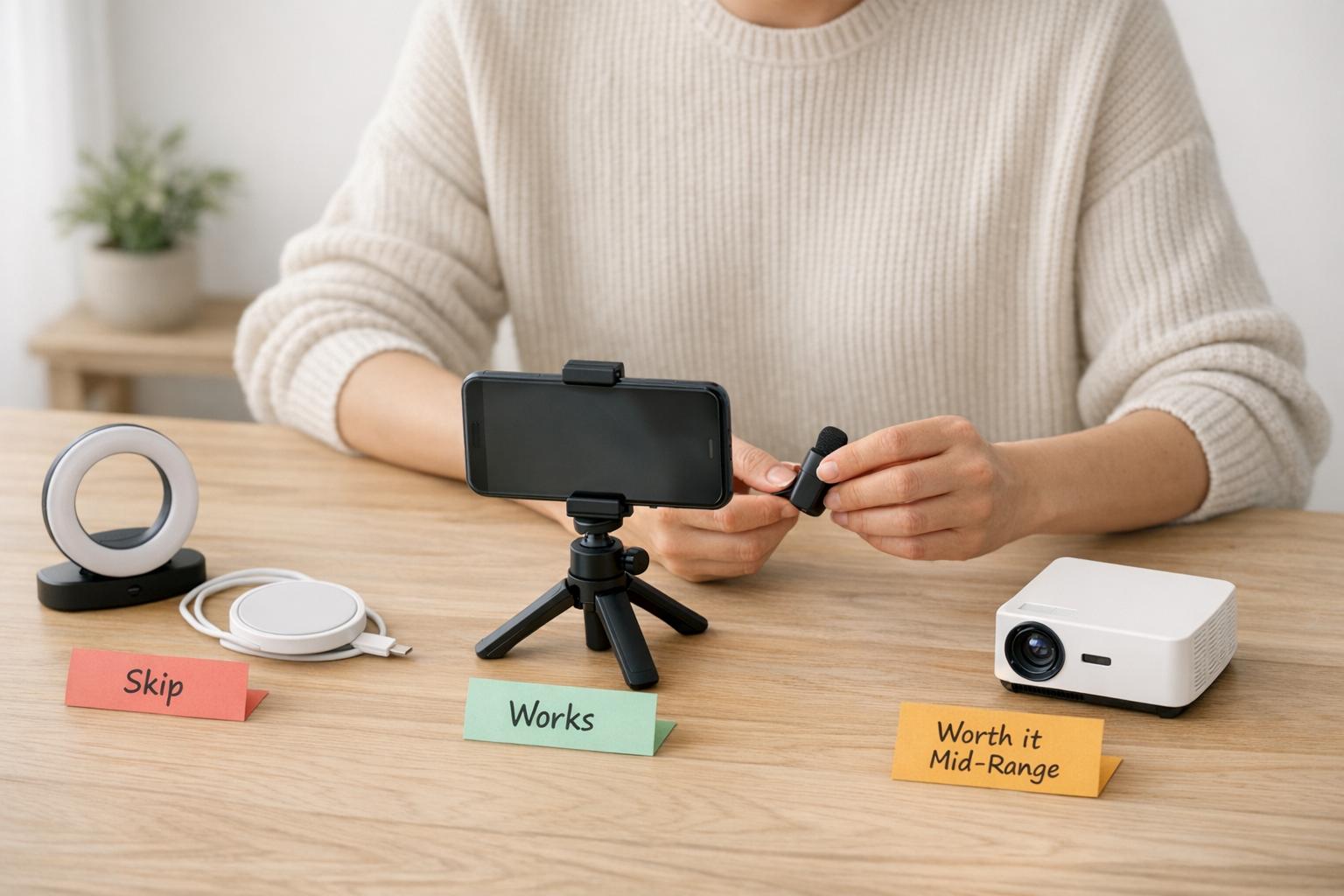
I Tested Viral TikTok Tech Gadgets – Here’s What Actually Works
TikTok makes gadgets look irresistible, but do they actually deliver? I tested five trending tech products to find out which ones are worth your…
Historical guide — verify current details
Introducing Supportia: The Uber for Tech Support
Introducing Supportia: The Uber for Tech Support In today's fast-paced digital world, having access to reliable tech support is essential. Enter Supportia – the…
Historical guide — verify current details