
This article contains affiliate links. If you make a purchase through one of these links, we may earn a commission at no additional cost to you.
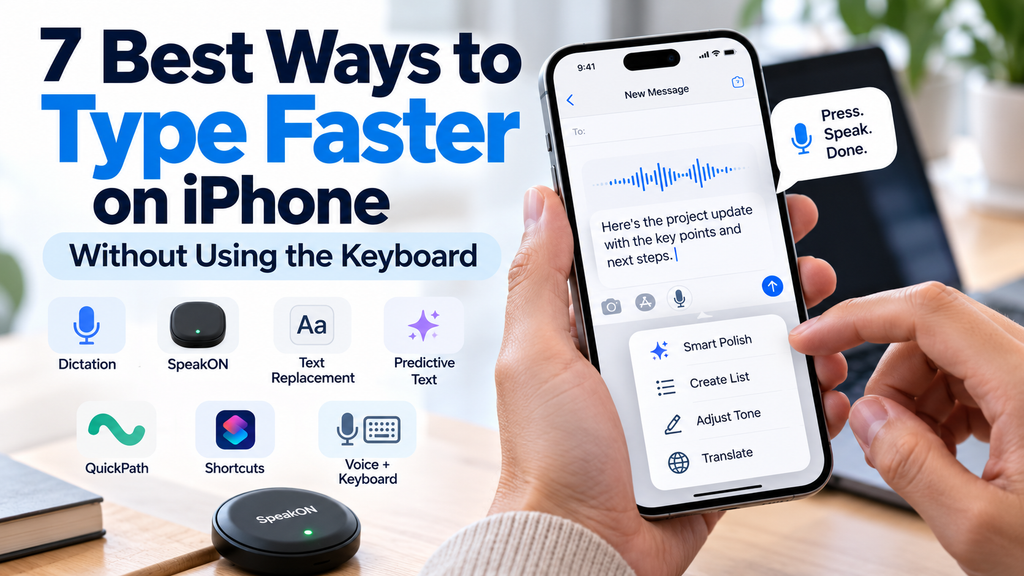
If you want to type faster on iPhone, tapping faster isn’t necessarily the answer. Your iPhone already has tools that can reduce how much you physically type, including Dictation, predictive text, text replacement, and swipe typing. Voice-first tools such as SpeakON take a different approach by turning spoken thoughts into more polished text that can be used directly in the apps where you’re already working.
The best method depends on what you’re trying to write. Dictation can be enough for a quick message, while text replacement is useful for phrases you repeat constantly. If you regularly compose longer emails, notes, messages, or ideas while you’re away from a computer, voice input can save considerably more typing.
The Fastest Ways to Type Faster on iPhone
| Method | Best For | Extra Cost? | Learning Curve |
|---|---|---|---|
| iPhone Dictation | Messages, notes, and everyday writing | No | Easy |
| SpeakON | Longer voice-written messages and ideas | Yes | Easy |
| Text Replacement | Repeated phrases and information | No | Easy |
| Predictive Text | Everyday keyboard typing | No | Easy |
| QuickPath | Faster one-handed typing | No | Easy |
| Shortcuts | Repetitive workflows | No | Moderate |
| Voice + Keyboard | Longer writing that needs corrections | No | Easy |
You don’t have to choose just one. In practice, the quickest setup often combines several methods depending on what you’re writing.
1. Use Dictation to Type Faster on iPhone
Before buying another app or accessory, try the voice typing already built into your iPhone.
Apple’s Dictation lets you speak into almost any place where you would normally type. Tap the microphone button on the onscreen keyboard and start talking. You can dictate messages and longer passages, insert punctuation, create new paragraphs, add emoji, and use voice commands to make certain corrections.
One particularly useful feature is that you don’t have to choose between speaking and typing. Apple allows Dictation and the keyboard to be used together, so you can dictate a sentence, tap the keyboard to correct something, and continue speaking without completely changing workflows.
That makes built-in Dictation the first option most people should try. If you’re sending a quick message such as “I’ll be there around six, but I’ll call you when I leave,” saying it can feel much more natural than tapping out every word.
There are limitations. Raw dictation may still need editing, particularly when you’re expressing an unstructured thought rather than speaking a carefully planned sentence. Names, technical terminology, background noise, and the way you naturally pause or change your mind can also affect the result.
For quick everyday writing, however, it’s difficult to beat a feature that’s already built into the phone.
Best for: Messages, short emails, notes, searches, and everyday text entry.
2. Use SpeakON When You Want Voice Typing With Automatic Cleanup
SpeakON approaches the same problem differently. Rather than simply converting speech into a raw transcript, it’s designed to turn what you say into more polished, usable text.
The device works with iPhone and is built around a simple idea: press the button, speak naturally, and have the resulting text appear in the app you’re already using. The supplied product information describes the workflow as working without having to continually switch apps or copy and paste text between them.
That distinction matters if you’ve tried voice dictation but find yourself spending too much time cleaning up the result afterward.
Most people don’t speak the way they write. We pause, repeat ourselves, say “um,” change direction halfway through a sentence, or remember an important detail after we’ve already moved on. SpeakON’s Smart Polish feature is designed to remove filler words and repetition, while its Smart List feature can organize spoken thoughts into a cleaner list.
The product also says it can recognize which app you’re writing in and adjust the tone accordingly. That could be useful if the way you write a work email is different from the way you send a casual message to a friend.
This doesn’t mean everyone needs a separate voice-input device.
If Apple’s free Dictation already produces text you’re happy with, buying additional hardware simply to avoid typing probably doesn’t make sense. SpeakON is more relevant to people who write frequently on their phones and regularly find themselves turning rough thoughts into emails, messages, notes, lists, or other structured text.
It also fits into a broader shift toward using AI to remove repetitive steps rather than adding more apps to a workflow. If you’re exploring that approach more broadly, our beginner’s guide to using AI tools explains where AI can genuinely save time and where a simpler tool may be enough.
Best for: People who frequently compose longer messages, emails, notes, lists, or ideas by voice.
3. Use Text Replacement for Things You Type Again and Again
Some typing doesn’t need AI or voice input at all.
Think about the phrases you repeatedly enter on your phone: an email address, business address, standard response, meeting link, phone number, website address, or a sentence you regularly send to customers or colleagues.
Apple’s Text Replacement feature lets you assign a short sequence of characters to a longer phrase. For example, Apple uses “omw” as an example that expands to “On my way!” You can create your own replacements under the iPhone’s keyboard settings.
The real benefit comes from creating shortcuts around your own habits.
Someone who frequently types a long business email address might create a memorable abbreviation for it. A small-business owner could create shortcuts for common customer replies. You could even create a shortcut for a phrase you regularly use when arranging meetings.
Don’t create dozens on the first day. Start with three or four pieces of text you genuinely find yourself typing repeatedly. Once those shortcuts become automatic, add more.
Text replacements can also sync through iCloud, making them more useful if you regularly move between Apple devices.
Best for: Email addresses, contact information, standard replies, frequently used phrases, and repetitive business messages.
4. Use Predictive Text Instead of Typing Every Word
If you prefer the keyboard, your iPhone can still reduce the amount of typing required.
Predictive Text suggests words and other information as you type, while inline predictions can attempt to complete the word or phrase you’re entering. Apple says an inline prediction can be accepted by tapping the Space bar, allowing you to complete portions of a sentence without manually entering every character.
The feature is easy to overlook because it becomes part of the normal keyboard experience. But once you start consciously using relevant suggestions instead of automatically typing through them, they can reduce a surprising number of keystrokes.
Predictive typing works best when the suggestion actually matches what you intended to say. Don’t change a sentence simply because your phone suggested something easier to tap.
This is also where AI-assisted productivity can be useful without replacing your own judgment. The most effective tools tend to remove small pieces of repetitive work while leaving you in control of the final result. Our look at AI tools people are using for productivity and everyday work explores that idea beyond the iPhone keyboard.
Best for: Anyone who prefers traditional typing but wants to reduce unnecessary keystrokes.
5. Use QuickPath to Type Faster on iPhone With One Hand
Voice input isn’t always practical. You might be sitting in a meeting, riding public transportation, or simply somewhere you don’t want to speak your message aloud. In those situations, QuickPath can make the regular iPhone keyboard considerably faster.
QuickPath lets you enter words by sliding your finger from one letter to the next instead of tapping each key individually. Lift your finger when you finish the word, and iPhone inserts it before you’re ready to start the next one.
It can feel awkward if you’ve spent years typing by tapping individual letters. After some practice, however, swiping can become particularly convenient when you’re holding the phone with one hand.
Accuracy matters more than speed at first. Trying to swipe as quickly as possible can result in incorrect words that take longer to fix than they would have taken to type normally. Start at a comfortable pace and let speed develop naturally.
QuickPath is especially useful when combined with predictive suggestions. Swipe most of the sentence, then use a suggestion when iPhone correctly anticipates the next word or phrase.
Best for: One-handed messages, casual conversations, searches, and situations where voice input isn’t appropriate.
6. Use Shortcuts to Type Faster on iPhone by Automating Repetitive Tasks
Sometimes the fastest way to type something is not to type it at all.
Apple’s Shortcuts app can automate actions that would otherwise require several steps. This becomes useful when your repetitive phone work extends beyond inserting a single phrase.
For example, someone who regularly sends similar information could create a shortcut that gathers information, opens the appropriate app, or prepares content for a recurring task. The goal isn’t to automate every interaction on your phone. It’s to identify the small tasks you perform repeatedly and remove unnecessary steps.
This is different from Text Replacement. Text Replacement is ideal when a few characters need to expand into a longer phrase, while Shortcuts is better suited to workflows involving multiple actions.
Automation can be particularly valuable if you use your phone for work. Instead of adding complicated tools simply because they’re available, start with the tasks that consume a noticeable amount of time each week.
The same principle applies when choosing productivity software on a computer. The most useful tools solve a recurring problem rather than adding another layer to your workflow, which is why our comparison of the best AI productivity apps for Windows and Mac focuses on practical uses rather than simply collecting features.
Best for: Repetitive workflows and people who frequently perform the same sequence of actions on their iPhone.
7. Combine Voice and Keyboard Input Instead of Choosing One
You don’t necessarily have to decide between voice typing and the keyboard.
For many people, the fastest workflow is a combination of the two. Voice is particularly efficient for getting a longer thought onto the screen, while the keyboard is better for making a small correction, changing a name, adjusting punctuation, or rewriting a specific sentence.
Imagine you’re writing a detailed email from your phone. You could dictate the main message in less than a minute, then use the keyboard to correct names and make a few final changes. That’s often easier than typing the entire email manually.
The same approach works with tools such as SpeakON. Voice can handle the initial capture and cleanup, while you remain responsible for reviewing the final message before sending it. This is particularly important for business communication, financial information, names, dates, and anything where a transcription error could cause confusion.
The goal isn’t to eliminate the keyboard. It’s to stop using the keyboard for every part of a task when another input method is faster.
Best for: Emails, longer messages, notes, and any writing where speed and accuracy both matter.
Which Method Should You Use to Type Faster on iPhone?
There isn’t one method that will be fastest for everyone.
For occasional voice typing, start with Apple’s built-in Dictation. It’s already available on the iPhone and may be all you need. If you repeatedly type the same information, Text Replacement can save more time with almost no effort once it’s configured.
QuickPath and Predictive Text are better choices if you prefer traditional keyboard input. Shortcuts becomes more useful when the problem isn’t typing itself but the repetitive actions surrounding what you’re trying to accomplish.
SpeakON occupies a more specific position. It makes the most sense for someone who frequently turns spoken thoughts into written communication and wants more automatic cleanup and structure than ordinary dictation provides. The product also includes features for turning recordings into editable notes, cleaning up repetitions, creating lists, and translating speech.
That doesn’t automatically make it a better choice than Apple’s free tools. Someone who sends a few short messages each day probably won’t get the same value from dedicated hardware as someone who regularly writes emails, captures ideas, or creates notes while moving between tasks.
Is SpeakON Worth It Compared With Free iPhone Dictation?
For most people, free iPhone Dictation should be the starting point.
If it accurately captures what you say and you don’t mind making occasional corrections, there may be little reason to add another device. Apple’s built-in options cover a surprisingly large amount of everyday typing.
SpeakON becomes more interesting when the problem isn’t simply converting speech to text. Its appeal is the additional processing after you speak: cleaning up the wording, removing repetitions, structuring information, and adapting the resulting text to where you’re writing. The product is also designed around a physical one-button workflow rather than repeatedly opening a separate voice-writing app.
For frequent mobile writers, that reduction in friction may be worthwhile. For occasional users, the built-in tools are likely the more sensible place to begin.
A Simple Way to Choose
If you’re unsure which method to use, start with the free options already on your iPhone. Try Dictation for longer sentences, QuickPath when you’re typing one-handed, Predictive Text for everyday messages, and Text Replacement for information you enter repeatedly.
After using those tools for a while, the remaining frustration becomes easier to identify. If you still spend considerable time cleaning up dictated text, a voice-first tool such as SpeakON becomes easier to justify. If typing isn’t actually slowing you down, there’s no need to add another tool.
The best productivity setup is usually the one that removes friction without creating new complexity.
Frequently Asked Questions
What is the fastest way to type on an iPhone?
For longer messages, speaking can be faster than entering every word manually. Apple’s Dictation is the easiest place to start because it’s built into iPhone. QuickPath, Predictive Text, and Text Replacement can make keyboard-based input faster when speaking isn’t practical.
How can I type faster on iPhone without downloading an app?
You can use built-in features such as Dictation, QuickPath, Predictive Text, and Text Replacement. These cover most everyday situations without requiring another app or subscription.
Is voice typing better than normal typing?
It depends on the situation. Voice typing is particularly useful for getting longer thoughts onto the screen quickly, but keyboard input can be more convenient for short messages, precise edits, private conversations, and noisy environments.
Do I need SpeakON to use voice typing on an iPhone?
No. iPhone already includes Dictation. SpeakON is an additional option for people who want features beyond basic speech-to-text, including automatic cleanup and structuring of spoken input.
Should I check voice-typed text before sending it?
Yes. Whether you’re using built-in Dictation or an AI-assisted voice tool, review important messages before sending them. Names, numbers, dates, technical terms, and words that sound similar can still be interpreted incorrectly.
Final Thoughts
If your goal is to type faster on iPhone, don’t focus only on increasing your keyboard speed. Reducing the amount of typing you need to do can make a much bigger difference.
Start with the free features already available on your iPhone. Dictation can handle longer thoughts, Text Replacement eliminates repetitive typing, QuickPath makes one-handed input easier, and Predictive Text can reduce individual keystrokes.
For people who rely heavily on voice input, tools such as SpeakON add another option by focusing on turning natural speech into cleaner, more structured text rather than simply producing a transcript. The important question isn’t whether it has more features than ordinary dictation, but whether those features solve a problem you encounter often enough to make them useful.
Did this solve your problem?
Your answer helps Supportia prioritize updates. No account or email is required.