
This article contains affiliate links. We may earn a commission if you make a purchase through these links.
Knowing how to protect your Windows PC from ransomware matters because ransomware doesn’t just make a computer annoying to use. A successful attack can encrypt documents, photos, work files, and other data, then demand payment for the possibility of getting them back.
The good news is that protecting a Windows PC doesn’t require an expensive security setup. Windows 11 already includes several useful protections, and a few sensible habits can reduce your risk considerably.
The key is not relying on one thing. Antivirus software helps, but so do updates, safer downloading habits, ransomware protection settings, and backups that malware can’t easily reach.
Here are eight practical steps you can take before ransomware ever becomes a problem.
What Does Ransomware Actually Do to Your PC?
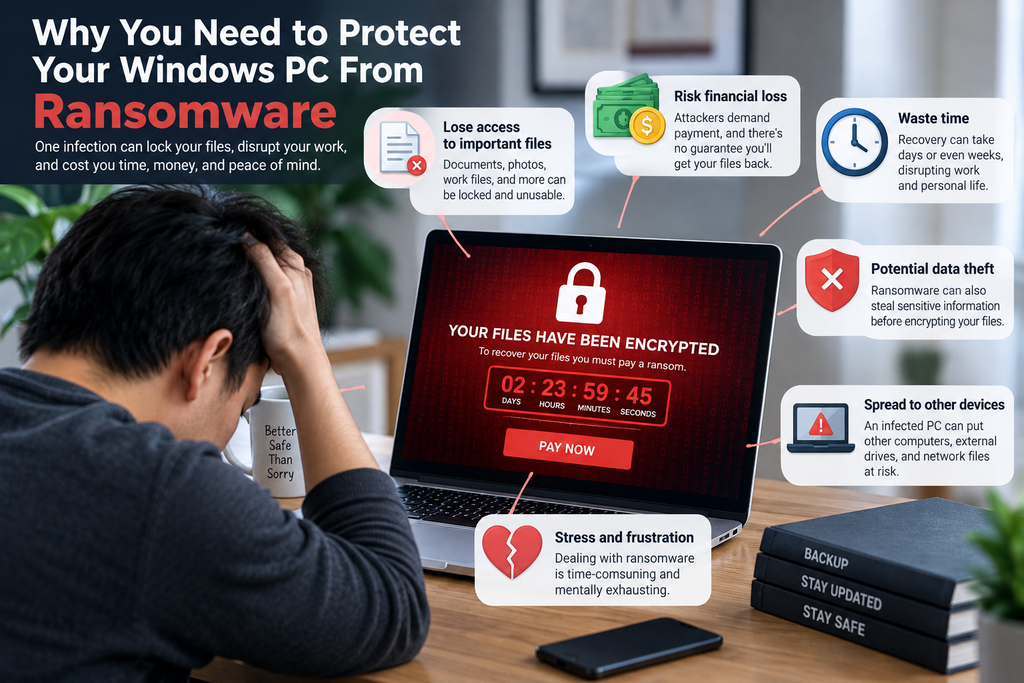
Ransomware is a type of malware designed to prevent you from accessing your files or computer. A common form searches for documents, photos, databases, and other files and encrypts them so they can no longer be opened normally.
The attacker then demands payment, often with the promise of providing a key that will decrypt the files.
The problem is that paying doesn’t guarantee you’ll recover everything. That’s why prevention and having a reliable recovery option are so important.
Ransomware can arrive through malicious email attachments, fake software downloads, compromised websites, pirated software, or vulnerabilities in software that hasn’t been updated. In some attacks, criminals first gain access to a computer or account and deploy ransomware later.
You don’t need to become a cybersecurity expert to reduce these risks. Most of the protection comes from closing off the easiest opportunities attackers rely on.
1. How to Protect Your Windows PC From Ransomware With Windows Security
Before paying for another antivirus program, make sure the security tools already included with Windows are actually working.
Windows Security includes Microsoft Defender Antivirus, firewall protection, reputation-based protection, and other security features. For most home users, these provide a useful first layer of defense when they’re enabled and kept up to date.
Open Windows Security from the Start menu and check Virus & threat protection. You shouldn’t see warnings indicating that antivirus protection is disabled or badly out of date.
It’s also worth running a scan occasionally if your PC begins behaving strangely, particularly after installing unfamiliar software or opening a questionable file.
Don’t run several real-time antivirus products at the same time in the hope that more security software automatically means more protection. Multiple security programs can sometimes interfere with each other and make troubleshooting more difficult.
If your PC does begin crashing, slowing down unexpectedly, or behaving unusually, Supportia’s essential PC troubleshooting steps can help you work through common causes before making major system changes.
2. Turn On Controlled Folder Access
Windows includes a ransomware-focused feature that many users never notice: Controlled Folder Access.
You’ll find it in Windows Security under Virus & threat protection > Ransomware protection.
Controlled Folder Access helps prevent untrusted applications from changing files inside protected folders. The idea is simple: if ransomware attempts to encrypt protected documents, Windows can block the application from modifying them.
That extra protection can be useful for folders containing documents, photos, and other important files.
There is a trade-off. Occasionally, a legitimate program may be blocked because Windows doesn’t recognize it. If that happens, you can review the notification and allow an application you trust rather than disabling the feature entirely.
This isn’t a replacement for backups or antivirus protection. Think of it as another barrier ransomware has to get through.
3. Keep Windows, Browsers, and Apps Updated
Software updates can feel inconvenient, particularly when Windows wants to restart at the wrong time. But updates aren’t only about adding features or changing how an application looks.
They frequently fix security vulnerabilities.
That applies to Windows itself, but also to browsers, PDF readers, communication apps, productivity software, and other programs connected to the internet.
You don’t necessarily need to install every optional feature update the moment it appears. Security updates are different. Delaying them for months can leave known weaknesses open long after fixes are available.
Browsers such as Chrome, Edge, and Firefox normally update automatically, but it’s still worth restarting them when an update is waiting. The same applies to applications that remain open for days or weeks.
Be especially cautious about software that hasn’t received updates for a long time. If an old application is no longer supported by its developer, consider whether you still need it.
4. How to Protect Your Windows PC From Ransomware When Downloading Files
A large part of ransomware prevention comes down to being more selective about what you download and open.
Fake installers are particularly dangerous because they can look surprisingly convincing. You search for an application, click what appears to be a download button, and end up installing something completely different.
Whenever possible, download software from the developer’s official website or a trusted app store rather than unfamiliar download portals.
Be especially cautious with pirated software, cracks, key generators, modified installers, and files that ask you to disable antivirus protection before installation. A program claiming that Defender must be switched off because of a “false positive” deserves extra scrutiny, not an automatic exception.
Email attachments require similar caution. An invoice, delivery notice, résumé, or account warning can look legitimate while containing a malicious attachment or directing you to a fake download.
If you weren’t expecting the file, verify the sender independently before opening it.
You also don’t need dozens of utilities installed just because they’re free. Keeping a smaller set of trustworthy programs makes a Windows PC easier to maintain and reduces unnecessary software exposure. Supportia’s selection of free Windows software worth installing focuses on established tools that solve specific everyday problems rather than filling a PC with unnecessary applications.
5. How to Protect Your Windows PC From Ransomware With Backups
Even good security can’t guarantee that ransomware will never get through. That’s why backups are such an important part of ransomware protection.
The important detail is where the backup is stored.
If your only backup is on an external drive that’s permanently connected to the PC, ransomware may potentially reach files on that drive as well. A safer approach is to keep at least one copy that isn’t continuously accessible from the computer.
For a home PC, that might mean backing up to an external HDD or SSD and disconnecting it when the backup is finished. Cloud storage can provide another copy, particularly when the service includes file version history or recovery features.
Supportia’s cloud storage comparison covers services including OneDrive, Google Drive, Dropbox, Proton Drive, Sync.com and others, including the security and recovery features that can matter when protecting important files.
If you want more than file copies, dedicated backup software can create a fuller recovery option. EaseUS Todo Backup, for example, can back up files, partitions, disks, or an entire Windows system and automate the process on a schedule.
The software itself isn’t what makes the strategy ransomware-resistant, though. The important part is maintaining a backup that remains recoverable even if the files on your PC are encrypted.
A backup you’ve never tested is also an unknown. Occasionally check that important files can actually be restored rather than simply assuming that because a backup job completed, recovery will work when you need it.
6. Be Careful With Email Attachments and Unexpected Links
Ransomware doesn’t always arrive through an obviously suspicious download. Sometimes the attack starts with an ordinary-looking email.
A message might claim that you have an unpaid invoice, a package waiting for delivery, a document requiring your signature, or a problem with one of your online accounts. The goal is usually to create enough urgency that you open an attachment or follow a link before thinking about it.
Look closely at the sender rather than relying only on the displayed name. An email that appears to come from a familiar company can still originate from an unrelated address.
Attachments deserve particular caution when they’re unexpected. Office documents, ZIP files, executables, and other file types can potentially be used to deliver malicious content.
The same principle applies to links. Instead of immediately signing in through a link in an unexpected message, open the company’s official website yourself and check your account there.
You don’t need to distrust every email. Just give unexpected requests involving downloads, passwords, payments, or urgent account problems a second look before acting.
7. Use a Standard Windows Account for Everyday Tasks
Many people use an administrator account for everything they do on their PC. It’s convenient, but it can also give malicious software more opportunities to make system-level changes.
A standard Windows account has fewer permissions. When something genuinely needs administrator access, Windows can ask for approval and administrator credentials.
This doesn’t make ransomware impossible, and it won’t protect every file. What it does is reduce the amount of unrestricted access available during normal everyday use.
This approach is particularly useful on shared family PCs. Children or other users who don’t need to install software or change system settings can use standard accounts while an administrator account is kept separately for maintenance.
Pay attention to Windows security prompts as well. If User Account Control suddenly asks for permission to make changes when you weren’t installing or updating anything, don’t automatically click Yes. Check which application is requesting permission first.
8. Know What to Do If You Suspect Ransomware
If files suddenly stop opening, unfamiliar extensions appear on filenames, or a ransom message appears on screen, don’t continue using the computer normally.
If the PC is connected to a network, disconnecting it can help limit its ability to communicate with other computers or network storage. If external backup drives are attached, don’t start opening files from them while you’re still unsure whether the computer is infected.
Avoid immediately deleting everything or reinstalling Windows. Before making major changes, you may need to identify what happened and determine whether clean backups or other recovery options are available.
Microsoft provides information about ransomware protection and recovery through its official ransomware guidance.
Most importantly, don’t assume paying a ransom guarantees your files will come back. You’re relying on criminals to provide a working decryption method after receiving payment, and there’s no guarantee they will.
If the infection is beyond what you’re comfortable handling yourself, getting professional help may be safer than experimenting with important files.
How Much Antivirus Protection Does a Windows PC Really Need?
For many home users, the security tools built into Windows provide a reasonable starting point. Microsoft Defender Antivirus runs in the background, scans files and downloads, and receives security intelligence updates through Windows.
Adding more security software doesn’t automatically make a PC safer.
What matters more is whether your existing protection is enabled and updated, and whether your everyday habits undermine it. Even excellent antivirus software can’t completely protect someone who repeatedly disables security warnings, installs unknown programs, or opens suspicious attachments.
That makes ransomware protection a combination of technology and behaviour.
Antivirus software is one layer. Updates are another. Controlled Folder Access adds another. Safer downloading habits reduce exposure, while a properly designed backup gives you a recovery option if those protections fail.
Don’t Forget Other Computers on Your Network
If you have several Windows PCs at home or in a small office, protecting only one computer isn’t necessarily enough.
Shared folders and network-attached storage can make files accessible from multiple computers. That’s convenient when everything is working normally, but it can also mean an infected computer has access to data stored elsewhere.
You don’t need to disconnect every computer from every other device. Instead, think about which machines genuinely need access to important shared folders and whether every user needs permission to modify them.
Backups deserve special attention. If every backup location is permanently accessible from every computer, a problem affecting one machine could potentially have wider consequences.
Keeping at least one backup separate from normal day-to-day access gives you a cleaner recovery option.
A Simple Ransomware Protection Routine
Ransomware protection doesn’t need to become another complicated maintenance job.
Let Windows and your browser install security updates regularly. Keep Windows Security active, use Controlled Folder Access where appropriate, and think twice before opening unexpected downloads or attachments.
Then make backups automatic wherever possible.
For especially important files, keep another copy somewhere that isn’t permanently connected to your PC. Every so often, open a few files from the backup to confirm they’re actually recoverable.
Those relatively small habits are more useful than installing a collection of security utilities and assuming they’ll handle everything for you.
Final Thoughts
Learning how to protect your Windows PC from ransomware is mostly about building several layers of protection rather than searching for one security tool that promises to stop every attack.
Windows Security and Controlled Folder Access can help block threats, while updates close known vulnerabilities. Being careful with downloads and unexpected emails reduces the chance of ransomware reaching the PC in the first place.
Backups provide the final safety net. Whether you use Windows’ built-in options, an external drive, cloud storage, or dedicated software such as EaseUS Todo Backup, make sure at least one important copy can’t easily be affected along with the files on your computer.
You may never need that recovery copy. But if ransomware, drive failure, or another serious problem does occur, having it can turn a potentially disastrous situation into something you can actually recover from.
Did this solve your problem?
Your answer helps Supportia prioritize updates. No account or email is required.