
This article contains affiliate links. If you make a purchase through one of these links, we may earn a commission at no additional cost to you.
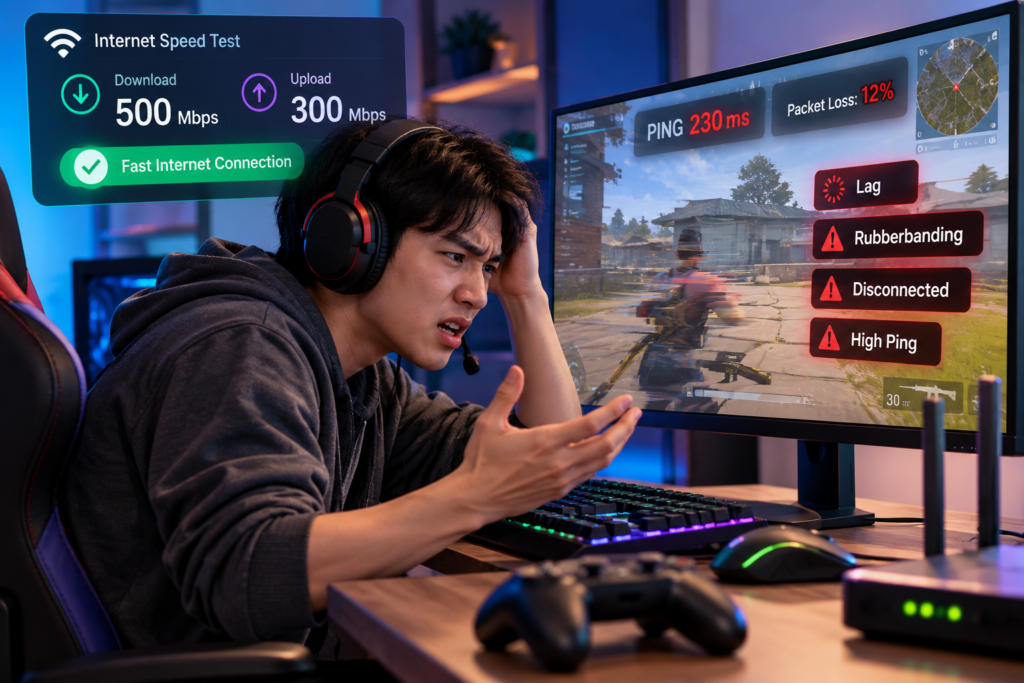
If your game lags with fast internet, the problem may have very little to do with your advertised download speed. A connection capable of hundreds of megabits per second can still produce delayed actions, rubberbanding, sudden freezes, or unstable multiplayer matches.
Online gaming depends heavily on how quickly and consistently small amounts of data travel between your device and the game server. Server distance, Wi-Fi interference, network congestion, packet loss, jitter, and the route your internet provider uses can all affect gameplay even when a speed test looks excellent.
The key is figuring out what kind of lag you’re experiencing before trying to fix it.
Why Your Game Lags With Fast Internet
A speed test primarily tells you how much data your connection can transfer and how it performs when communicating with the test server. Your game may be connecting to a completely different server hundreds or thousands of kilometers away.
That is why two connections with similar download speeds can produce very different gaming experiences.
For online games, these measurements are often more useful than headline download speed:
• Ping — how long data takes to travel between you and the server, usually measured in milliseconds.
• Packet loss — data that fails to reach its destination.
• Jitter — variation in latency over time.
• Connection stability — whether the connection remains consistent throughout a match.
A 500 Mbps connection with unstable latency can therefore feel worse in an online game than a much slower connection with consistently low latency.
1. The Game Server Is Far Away
Server location is one of the simplest explanations for high latency.
Your inputs have to travel from your device to the game’s server, and the server’s response has to travel back. The farther that information needs to go, the harder it becomes to maintain very low latency.
This becomes particularly noticeable when playing on servers outside your region. You might have excellent performance when connected to a nearby Asian server, for example, but noticeably higher ping when connecting to North America or Europe.
Faster broadband doesn’t eliminate physical distance. Upgrading from a 100 Mbps connection to a 500 Mbps connection may dramatically improve large downloads without producing the same improvement in your ping to a distant game server.
Before changing Windows settings or installing optimization software, check whether the game allows you to choose a server or region. When possible, test a geographically closer server and compare the result.
2. Your Wi-Fi Is Fast but Unstable
A Wi-Fi speed test can look impressive while your game still experiences brief connection problems.
Wireless connections are affected by distance from the router, walls, neighboring networks, interference, router placement, and the Wi-Fi band you’re using. Those variations aren’t always obvious when you’re browsing websites or watching buffered video, but real-time multiplayer games can make them much easier to notice.
Microsoft notes that the different Wi-Fi bands have their own trade-offs. For example, 5 GHz generally provides faster throughput and encounters less congestion than 2.4 GHz, but it has shorter range and doesn’t pass through obstacles as effectively. A strong 6 GHz connection can offer lower congestion and latency on compatible equipment.
If your game lags with fast internet while you’re on Wi-Fi, try playing one or two matches over Ethernet as a diagnostic test. You don’t necessarily have to permanently run a cable across your home. The test helps establish whether the wireless connection is part of the problem.
If the lag largely disappears over Ethernet, concentrate on the Wi-Fi network rather than paying for a faster internet package.
For Windows PCs experiencing broader connectivity problems outside gaming, our step-by-step guide to fixing internet problems in Windows 11 covers the underlying network checks worth performing.
3. Other Devices Are Competing for the Connection
Your game isn’t necessarily the only thing using your internet connection.
Someone could be streaming high-resolution video while another computer downloads a large update. Your phone might be backing up photos, cloud storage could be synchronizing files, and Windows or a game launcher could start downloading an update in the background.
The effect can be especially noticeable when the connection’s available upload capacity becomes heavily utilized. Your game still needs to exchange data with the server, and congestion can increase latency even though your internet connection hasn’t technically become “slow.”
Before a gaming session, check for obvious bandwidth-heavy activity. Look at downloads running through Steam or other launchers, Windows updates, cloud synchronization, streaming devices, and large file transfers elsewhere on the network.
You don’t need to disconnect every device in the house. The objective is to determine whether the lag becomes worse when the network is busy.
If gameplay is smooth when you’re the only active user but deteriorates when several people are streaming or downloading, you’ve identified a local network congestion problem rather than simply a lack of internet speed.
4. Your ISP May Be Taking an Inefficient Route to the Game Server
This cause is less visible because the problem can exist outside your home.
Internet traffic doesn’t necessarily travel directly from your PC to a game server. It passes through multiple networks and intermediate points along the way. The route chosen by your internet provider may not always be the shortest or most stable path to a particular gaming server.
This can explain an especially confusing situation: most websites work perfectly, your speed test is excellent, and some games have low ping—but one particular game or region performs badly.
Changing your internet package may not fix that.
Network-routing tools are one option worth testing in this situation. GearUP, for example, says its Adaptive Intelligent Routing technology attempts to route game traffic through optimized paths rather than relying entirely on the normal route. The service specifically targets connection problems such as high ping, packet loss, jitter, and cross-region instability.
That doesn’t mean a routing tool will lower everyone’s ping. The result depends heavily on your existing ISP route, physical location, and the location of the game server. If your ISP is already providing an efficient route, there may be little to improve.
This is why testing is more useful than assuming. GearUP provides a ping-testing feature and a free trial, so you can compare your connection before deciding whether route optimization makes a meaningful difference for the games you actually play.
For a deeper explanation of what these tools do, our existing GearUP review and gaming network optimization guide looks specifically at ping, packet loss, jitter, and game routing.
5. You’re Experiencing Packet Loss, Not Slow Internet
Packet loss is one of the reasons a fast internet connection can still feel terrible during an online match.
Your device and the game server continuously exchange packets of data. When some of those packets fail to arrive, the game may have to compensate for missing information.
The symptoms can include characters suddenly changing position, actions failing to register correctly, brief freezes, inconsistent movement, or unexpected disconnections.
This is different from consistently high ping. You could have reasonably low average latency and still experience poor gameplay because some data is being lost along the way.
Packet loss can originate from several places, including an unstable Wi-Fi connection, overloaded networking equipment, problems with your ISP, or issues farther along the route to the game server.
If packet loss appears only on Wi-Fi, test Ethernet. If it appears across multiple devices and games even over a wired connection, the issue may be farther upstream.
The important point is not to treat every connection problem as “high ping.” Identifying whether you’re dealing with latency, packet loss, or another type of instability makes the next troubleshooting step much easier.
6. Jitter Is Causing Random Lag Spikes
Average ping doesn’t tell the whole story.
Suppose your game normally runs at 30 ms. That sounds excellent. But if the latency repeatedly jumps from 30 ms to 120 ms, falls to 35 ms, then suddenly reaches 180 ms, the connection can still feel inconsistent.
That variation is jitter.
In a fast-paced multiplayer game, inconsistent latency can be particularly frustrating because the problem comes and goes. One moment everything feels responsive; seconds later you may experience delayed movement or an unexpected lag spike.
This is why stability can matter as much as achieving the lowest possible ping.
If your average ping looks fine but you experience random spikes, investigate Wi-Fi interference, network congestion, background downloads, and other devices using the connection before assuming the game itself is responsible.
For PC players, it’s also worth separating network-related lag from Windows performance problems. Our guide to optimizing Windows 11 for gaming covers system settings and performance issues that can affect how smoothly games run even when the network is working correctly.
7. The Problem May Be Your PC, Not Your Internet
Not every problem that looks like network lag is actually caused by the network.
Low frame rates, overheating, insufficient memory, overloaded background processes, storage problems, or graphics settings that are too demanding for your hardware can make a game stutter or freeze. From the player’s perspective, this can sometimes feel similar to a poor internet connection.
The easiest way to tell the difference is to look at what happens when the problem occurs. If other players suddenly jump around the map, your actions register late, or the game displays a latency or packet-loss warning, the network is a more likely suspect. If the entire game becomes choppy while your ping remains stable, PC performance deserves closer attention.
Try lowering demanding graphics settings and closing unnecessary background applications. Check whether your frame rate drops at the same moment you notice the problem. Updating graphics drivers can also help when poor performance is related to the GPU rather than the connection.
This distinction matters because no network optimizer can fix a game that’s struggling because the PC can’t maintain a stable frame rate.
What Should You Check First When Your Game Lags With Fast Internet?
Don’t change several settings at once. If you do, you won’t know which change actually helped.
Start by checking the game’s current ping and server region. If the game lets you select a server manually, compare a nearby region with the one you’re currently using.
Next, test the same game over Ethernet if you’re normally on Wi-Fi. Pause large downloads, cloud synchronization, streams, and game updates during the test. If possible, play when fewer people are heavily using the home network.
Then watch what happens when the lag appears. A consistently high ping suggests a different problem from sudden latency spikes, packet loss, or falling frame rates.
If the problem affects only one game or one distant server while everything else performs normally, server location or network routing becomes a stronger possibility.
Testing one variable at a time usually tells you far more than randomly changing Windows, router, and game settings.
How to Tell What Kind of Gaming Lag You Have
Different problems tend to produce different symptoms.
| What You Notice | Possible Cause | What to Test First |
|---|---|---|
| Consistently high ping | Distant server or inefficient routing | Try a closer server |
| Random ping spikes | Wi-Fi, congestion, or jitter | Test with Ethernet |
| Rubberbanding | Packet loss or unstable latency | Check packet loss |
| Lag when others stream or download | Network congestion | Pause heavy network activity |
| One game has high ping but others don’t | Server location or routing | Compare regions and routes |
| Low FPS or choppy graphics with normal ping | PC performance | Check FPS and system usage |
| Frequent disconnects | Wi-Fi, packet loss, ISP, or server issues | Test a wired connection and other games |
This isn’t a perfect diagnostic chart because several problems can produce similar symptoms. It does, however, give you a much better starting point than assuming every form of lag requires faster internet.
Will Faster Internet Fix Gaming Lag?
Sometimes, but not as often as people assume.
A very slow connection shared among several people can become congested, so upgrading the internet package may help in that situation. More bandwidth gives multiple devices additional room to download, stream, and communicate at the same time.
But once you have sufficient bandwidth for the game and everything else happening on your network, increasing the headline speed doesn’t automatically reduce latency.
A 1 Gbps plan doesn’t guarantee lower gaming ping than a 300 Mbps plan. Your latency still depends on factors such as server distance, Wi-Fi conditions, congestion, network routing, and the infrastructure between you and the destination.
This is why upgrading your plan should usually come after diagnosing the problem rather than being the first response to gaming lag.
Can Ethernet Really Reduce Gaming Lag?
Ethernet can’t shorten the physical distance between your home and a game server, but it can remove many of the variables introduced by Wi-Fi.
A wired connection doesn’t have to compete with neighboring wireless networks or deal with the same interference from walls, distance, and other wireless devices. That often makes Ethernet valuable for stability even when the difference in average ping is relatively small.
The important word is stability.
If your Wi-Fi connection already provides consistently low latency with no packet loss, moving to Ethernet may produce only a modest improvement. If Wi-Fi is causing intermittent spikes or packet loss, the difference can be much more noticeable.
For desktop gaming PCs and consoles that remain in one location, Ethernet is therefore worth testing before paying for another service or replacing networking equipment.
Can a Game Booster Lower Your Ping?
It depends on what the software is actually doing.
Some programs marketed as game boosters primarily optimize local PC resources by closing background processes or adjusting Windows settings. Those changes may improve frame rates or reduce system stuttering, but they don’t necessarily improve the network path between your computer and a game server.
Network-focused tools work differently. They may attempt to route game traffic through an alternative path when the normal ISP route is inefficient.
That can help under the right circumstances, but it isn’t a way to bypass physical distance. If you’re thousands of kilometers from the server, software cannot make that distance disappear.
The most sensible approach is to test rather than assume. Compare your ping, packet loss, and stability with and without the routing optimization while playing the same game on the same server. A meaningful improvement should be visible during actual gameplay, not just in marketing claims.
What Won’t Necessarily Fix High Ping?
Gaming problems often lead people to change things that have little relationship to the underlying issue.
Buying a more powerful graphics card, for example, can improve frame rates but won’t normally change the network route to a game server. Likewise, lowering graphical quality can help a struggling GPU without fixing packet loss.
Clearing temporary Windows files may free storage space, but it isn’t a standard solution for high network latency. A faster monitor can make gameplay feel more responsive visually, but it doesn’t reduce your internet ping.
Even buying a faster router isn’t guaranteed to help. It may improve the local wireless network if your current router is the bottleneck, but it won’t correct a distant game server or a poor route farther out on the internet.
Treat the symptom rather than buying upgrades first.
Frequently Asked Questions
Why does my game lag even though I have fast internet?
Fast download speed doesn’t guarantee low or stable gaming latency. Server distance, Wi-Fi interference, network congestion, packet loss, jitter, routing problems, or PC performance can all cause lag even on a fast broadband connection.
Is 20 ms ping good for gaming?
Yes. Around 20 ms is generally a very responsive connection to a game server. Consistency still matters, though. A connection that repeatedly jumps from 20 ms to much higher latency may feel worse than one that stays consistently at a somewhat higher value.
Why is my ping high when my download speed is fast?
Download speed measures how much data your connection can transfer, while ping measures how long data takes to travel to a particular destination and back. You can therefore have very high download speeds and still experience high latency to a distant or poorly routed game server.
Can Ethernet lower ping?
It can, particularly when Wi-Fi interference or instability is contributing to the problem. Even when Ethernet doesn’t dramatically reduce average ping, it can provide a more consistent connection with fewer wireless variables.
Can packet loss cause lag with low ping?
Yes. Average latency can look normal while lost packets cause rubberbanding, delayed actions, freezes, or other connection problems. This is why checking only the ping number can be misleading.
Does a gaming router reduce ping?
A gaming router can help when the local network is contributing to congestion or Wi-Fi instability, particularly when multiple devices are competing for bandwidth. It cannot eliminate the latency created by physical distance to a game server or guarantee a better route through your ISP.
Can you get 0 ms ping in an online game?
Not realistically when communicating with a remote internet server. Data requires time to travel through networking equipment and physical infrastructure. Extremely low latency is possible when the destination is very close, but a true zero-millisecond round trip to a remote game server isn’t a realistic target.
Final Thoughts
When your game lags with fast internet, don’t assume you need to pay for an even faster connection. Download speed is only one part of online gaming performance.
Start with the basics: check the server region, test Ethernet, pause heavy network activity, and determine whether you’re experiencing consistently high ping, packet loss, jitter, or a PC performance problem. If only certain games or distant servers perform poorly, network routing may also be worth investigating.
Most importantly, change and test one thing at a time. Once you identify whether the bottleneck is inside your PC, on your home network, or somewhere between your ISP and the game server, choosing the right fix becomes much easier.
Did this solve your problem?
Your answer helps Supportia prioritize updates. No account or email is required.
Related guides
GearUP Review: A Smarter Way to Lower Ping and Reduce Lag in Online Games
Discover how GearUP Booster helps reduce high ping, packet loss, and lag spikes in online games. Learn how this gaming network optimizer improves connection…
Reviewed 2026-08-24Best Free Online Gaming Platform in 2026: Why Zaphira Games Stands Out
Play instant free browser games on Zaphira Games in 2026. Enjoy fast-loading casual and multiplayer games with no downloads, mobile-friendly access, and a simple,…
Historical guide — verify current details7 Best Ways to Type Faster on iPhone Without Using the Keyboard
If you want to type faster on iPhone , tapping faster isn't necessarily the answer. Your iPhone already has tools that can reduce how…
Historical guide — verify current details