
This article contains affiliate links. We may earn a commission if you make a purchase through these links.
Knowing how to back up your Windows PC is one of those things that’s easy to put off. Everything is working, your files are where you expect them to be, and making a backup feels like something you can deal with later.
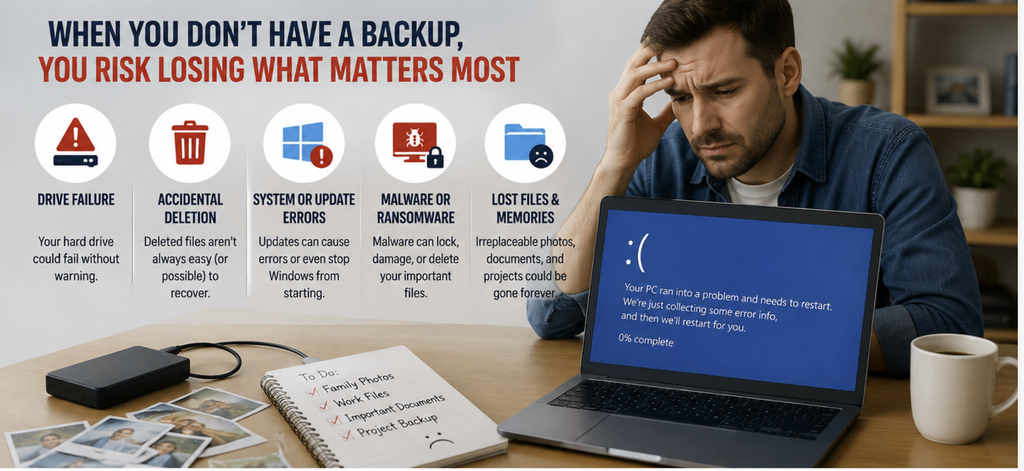
Then a drive fails, an important file gets deleted, or Windows suddenly refuses to start.
The good news is that backing up your PC doesn’t have to be complicated. Windows already includes useful backup options, and for many people, an external drive and cloud storage are enough to protect the files that matter most.
If you want more protection, you can go further and create a full system backup. That can save a lot of time if you ever need to replace a failed drive or recover a PC that won’t start.
Here are five practical ways to back up a Windows PC and when each one makes sense.
Before You Back Up Your Windows PC, Decide What Matters
Before choosing a backup method, think about what you’d actually miss if your computer stopped working tomorrow.
For most people, it’s their personal files rather than Windows itself. Photos, documents, videos, work files, financial records, and personal projects can be difficult or impossible to replace.
Windows and most applications can be installed again. Your family photos can’t.
That’s why your first priority should be making sure important files exist somewhere other than the drive inside your computer.
A full system backup is a little different. Instead of protecting only your personal files, it can preserve much more of your PC. This can make recovery considerably easier if a drive fails or Windows becomes unusable.
It’s also a good idea to check your backups before making major changes to your computer. If you’re dealing with a troublesome update, for example, our guide to rolling back a Windows update explains the recovery options available and why protecting important files beforehand is worthwhile.
Backing Up Your Windows PC vs Using Cloud Storage
It’s easy to assume that if you use OneDrive, Google Drive, or Dropbox, your computer is already backed up.
There is some overlap, but cloud storage and backup aren’t quite the same thing.
Cloud storage is largely designed around storing and synchronizing files. Change a synchronized file on one device and that change can appear on your other devices. Delete something and the deletion may also be synchronized.
Many cloud services provide version history and deleted-file recovery, so synchronization certainly provides some protection. But for files you really can’t afford to lose, having another independent copy is still a good idea.
You don’t have to choose between the two.
You could keep your everyday documents synchronized with OneDrive while also backing them up to an external drive. That gives you an online copy that’s easy to access as well as a separate local backup.
If you’re deciding where to keep files online, our comparison of the best cloud storage services for individuals and small businesses covers OneDrive, Google Drive, Dropbox, Proton Drive, pCloud, and several other options.
1. Back Up Your Windows PC With Windows Backup
For Windows 11 users, Microsoft’s own Windows Backup is one of the easiest places to start.
It’s already part of Windows, so there’s no additional backup program to learn. It works with your Microsoft account and OneDrive to help protect selected folders and remember certain Windows settings and preferences.
That can be particularly handy when setting up another PC. Instead of trying to remember everything about your old setup, you can sign in with the same Microsoft account and restore supported information.
Microsoft explains what Windows Backup saves and how the restoration process works in its official Windows Backup documentation.
There is one important limitation to understand.
Windows Backup isn’t the same as making a complete copy of your computer’s drive.
If the drive fails and you want to restore Windows, your programs, settings, and files as completely as possible, you’ll need a more comprehensive backup method.
But if you mainly want an easy way to protect common folders and make moving or recovering your Windows setup less painful, it’s a sensible place to start.
2. Use File History With an External Drive
If you have an external hard drive or SSD, Windows File History gives you another built-in backup option.
File History automatically saves copies of your personal files to an external drive or network location. Microsoft says it can protect files stored in Windows libraries such as Documents, Pictures, Videos, and Music, along with libraries you create yourself.
One of the useful things about File History is that it can help with more than completely lost files.
Imagine you’ve been working on an important document for several days and accidentally overwrite a section you needed. If File History has saved an earlier version, you may be able to restore that version instead of trying to recreate your work.
Once it’s configured, File History can save backups automatically whenever the backup drive is available.
That’s a lot easier than trying to remember to copy everything yourself every few weeks.
There is an obvious catch: the external drive needs to be available for new backups to be saved.
There’s also the question of where that drive is kept. If your computer and its only backup drive are always sitting next to each other, a theft, fire, flood, or other physical incident could affect both.
For that reason, an external drive works best as one part of your backup setup rather than the only copy of everything important.
3. Back Up Important Files to an External Drive
You don’t always need dedicated backup software.
If you have a manageable amount of important data, manually copying it to an external hard drive or SSD is still a perfectly reasonable backup method.
Connect the drive and copy the folders that matter: Documents, Pictures, Videos, work folders, financial records, personal projects, and anything else you’d hate to lose.
It’s simple, and that’s actually one of its advantages.
The problem is remembering to do it again.
A backup you made six months ago doesn’t contain the photos, documents, and projects you’ve created since then. The longer you leave between backups, the more you could potentially lose.
That’s why automatic backups are usually better for folders that change frequently.
Manual backups still have their place. They’re useful for files that rarely change, for archiving older material, or simply as an additional copy alongside another backup method.
If the external drive is only used for occasional backups, you can also disconnect it when you’re finished. Keeping the backup separate from the PC reduces the chance that a problem affecting the computer also reaches the backup drive.
4. Create a Full Backup of Your Windows PC
Backing up your documents and photos protects the things that are hardest to replace. But if your Windows drive fails, getting the computer running again can still take quite a bit of work.
You may need to reinstall Windows, download your applications again, restore your settings, sign back into your accounts, and then copy all your personal files back.
A full system backup can make that process easier.
Instead of copying only selected folders, a system backup can include Windows, installed programs, settings, files, and entire drives or partitions. If something goes badly wrong, you have a more complete copy to recover from.
This is where dedicated backup software starts to make more sense.
EaseUS, for example, supports system, disk, partition, and file backups. You can also schedule backups so you don’t have to remember to run them manually.
For someone who uses their PC every day for work, a full system backup can be worth having simply because rebuilding the computer from scratch could take hours.
That doesn’t mean everyone needs paid backup software.
If you mostly use a PC for browsing, streaming, and a few basic applications, you may be perfectly happy reinstalling Windows if the worst happens. In that case, keeping your important personal files safely backed up may be enough.
The more time it would take to rebuild your computer, the more useful a full system backup becomes.
5. Back Up Your Windows PC to the Cloud
An external drive is useful, but it has one obvious weakness: it’s often sitting right beside the computer.
If something happens to the room—or the entire house—you could lose both copies.
That’s where an off-site backup becomes useful.
For many home users, the easiest option is cloud storage. Important documents, photos, and other files can be stored online so they’re still available if something happens to the computer and its local backup.
You may already be doing some of this without thinking of it as backup. Windows users who save their Desktop, Documents, and Pictures folders to OneDrive, for example, already have copies of those files stored online.
Other cloud storage services can serve a similar purpose. Our guide to the best cloud storage services for individuals and small businesses compares several options if you need more online storage or don’t want to rely entirely on OneDrive.
Just remember that synchronization and backup aren’t identical. For particularly important files, it’s better to have another independent copy rather than assuming anything stored in a synchronized folder is completely protected.
How to Back Up Your Windows PC Using the 3-2-1 Rule
You don’t need a complicated backup system, but relying on one copy isn’t a great idea either.
A useful guideline is the 3-2-1 backup rule:
• Keep three copies of important data
• Store those copies on at least two different types of storage
• Keep one copy somewhere else
For a home Windows PC, that could be surprisingly simple.
Your original files stay on the computer. A second copy goes onto an external hard drive or SSD. A third copy of your most important files is stored securely in the cloud.
Now a failed SSD doesn’t wipe out your files because you have the external drive.
If the external drive also fails, you still have the cloud copy.
And if something happens to both the computer and the external drive at the same time, your most important files aren’t in the same physical location.
You don’t have to follow the rule perfectly for every file on your computer. Concentrate on the things you genuinely couldn’t replace.
Which Windows Backup Method Should You Use?
There isn’t one backup method that’s right for everyone.
If you mainly want to protect documents and photos, Windows Backup or File History combined with an external drive may be all you need.
If you already keep important files in OneDrive or another cloud service, adding an external backup gives you another independent copy.
If your computer contains lots of installed programs, custom settings, work software, or other things that would take a long time to rebuild, a full system backup becomes much more attractive. A tool such as EaseUS can automate this rather than requiring you to manage everything manually.
And if the files are genuinely irreplaceable, don’t keep every copy in the same place.
For most home users, a sensible setup looks something like this:
• Keep everyday files on the PC
• Automatically back up important folders
• Keep another copy on an external drive
• Store your most important files off-site or in the cloud
It doesn’t need to be more complicated than that.
How Often Should You Back Up Your Windows PC?
How often you need a backup depends on how much you’re willing to lose.
If you only add a few personal photos or documents each month, a weekly backup might be perfectly reasonable.
If you work on your PC every day and regularly create or change important files, daily automatic backups make much more sense.
A simple way to decide is to ask yourself:
If my drive failed right now, how much recent work would I be comfortable losing?
If the answer is one day, back up daily.
If losing a week’s worth of changes wouldn’t matter much, weekly backups may be enough.
The advantage of automatic backup is that you don’t have to keep thinking about it. Once you’ve set up File History, cloud synchronization, or scheduled backup software, most of the work happens in the background.
Don’t Assume a Backup Works Until You’ve Checked It
Making a backup is only half the job.
Every so often, open the backup and make sure your files are actually there.
Try restoring a document. Check when the most recent backup was created. If you’re using an external drive, make sure Windows can still read it.
This takes a few minutes and can prevent a nasty surprise later.
A backup drive that quietly stopped working six months ago isn’t much help when your main drive fails today.
The same idea applies to other Windows recovery tools. Our 10 essential PC troubleshooting tips covers several things worth preparing before your computer develops a serious problem.
Final Thoughts
Learning how to back up your Windows PC doesn’t mean you need an elaborate backup system or expensive software.
Start with the files you’d be genuinely upset to lose.
Windows Backup and File History provide useful built-in options, an external drive gives you a separate local copy, and cloud storage can keep important files somewhere away from the computer itself.
A full system backup is worth considering if reinstalling and rebuilding your PC would be a major inconvenience. Dedicated software such as EaseUS can make that process easier, but it isn’t something every Windows user needs.
What matters most is having more than one copy of your important files—and making sure those copies are actually up to date.
A simple backup that runs regularly is far more useful than an elaborate backup plan you never get around to using.
Did this solve your problem?
Your answer helps Supportia prioritize updates. No account or email is required.