Blog
Steam and Proton Compatibility: Check Before Troubleshooting
Before changing Linux, confirm whether the game, launcher, anti-cheat and required features currently work through Steam Play and Proton.
Reviewed 2026-09-30
Linux Mint, Steam, Proton, graphics drivers and game compatibility.
Before changing Linux, confirm whether the game, launcher, anti-cheat and required features currently work through Steam Play and Proton.
Reviewed 2026-09-30Start with Steam’s supplied Proton, verify the game files and graphics path, and change one compatibility variable at a time.
Reviewed 2026-08-24Use the Steam default first, then stable, Experimental or Hotfix only when the game’s evidence supports a change.
Reviewed 2026-08-24Improve Linux Mint gaming methodically by checking the graphics driver, session, Steam and Proton configuration, power state and per-game evidence one change at a…
Reviewed 2026-09-30Use Linux Mint Driver Manager to identify a recommended NVIDIA driver, then verify rendering and Vulkan before adjusting game settings.
Reviewed 2026-08-24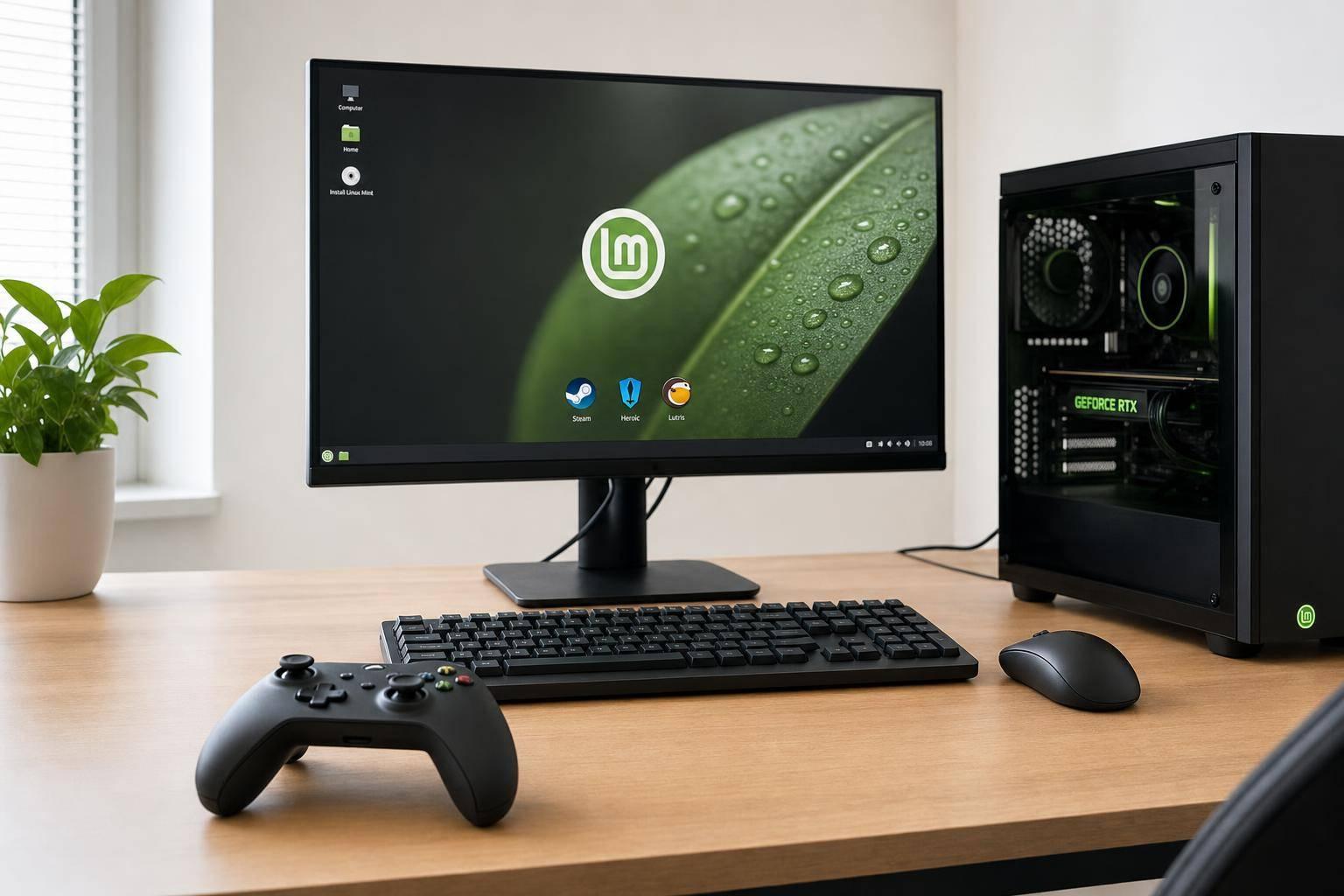
Linux gaming is no longer a niche experiment. For many players, it has become a practical alternative to Windows - especially if your library…
Reviewed 2026-08-24Allow Google Analytics to measure visits and clicks to providers? You can use this site without statistics. This choice is separate from Google advertising choices and can be changed in the footer.