
Reliability usually matters more than headline download speed. Improve signal, congestion and local traffic before replacing hardware.
Step-by-step checks
1. Establish a wired baseline
If possible, compare one session over Ethernet. This separates Wi-Fi instability from the internet connection, game server or PC.
2. Check placement and signal
Move temporarily closer to the router and remove avoidable obstacles. Do not hide a router in a cabinet or next to large metal objects.
3. Choose the suitable band
Use 5 or 6 GHz near the router for capacity and 2.4 GHz when range is more important. Keep one known configuration while testing.
4. Reduce competing traffic
Pause large uploads, backups and multiple high-resolution streams. Upload saturation can damage game responsiveness even when download speed looks good.
5. Update safely
Install router firmware from its official administration interface and network drivers from Windows Update or the device manufacturer.
When to stop
Avoid factory reset unless you have provider, Wi-Fi and security settings. Never follow a guide that asks you to disable encryption or expose the router administration page publicly.
What to tell an expert
Share the device model, operating system, exact symptom or error, when it began, what changed beforehand, and which checks you completed. Do not send passwords, one-time codes, encryption recovery keys, or unnecessary personal files.
Official reference
This Supportia guide was prepared with current official guidance as a factual baseline. Interface names can still vary by device and version. Open the official reference.
Did this solve your problem?
Your answer helps Supportia prioritize updates. No account or email is required.
Related guides
High Ping vs Packet Loss: Diagnose Online Gaming Lag
Ping, jitter and packet loss describe different network behaviour. Measure first so a local setting is not blamed for a distant server or provider…
Reviewed 2026-08-24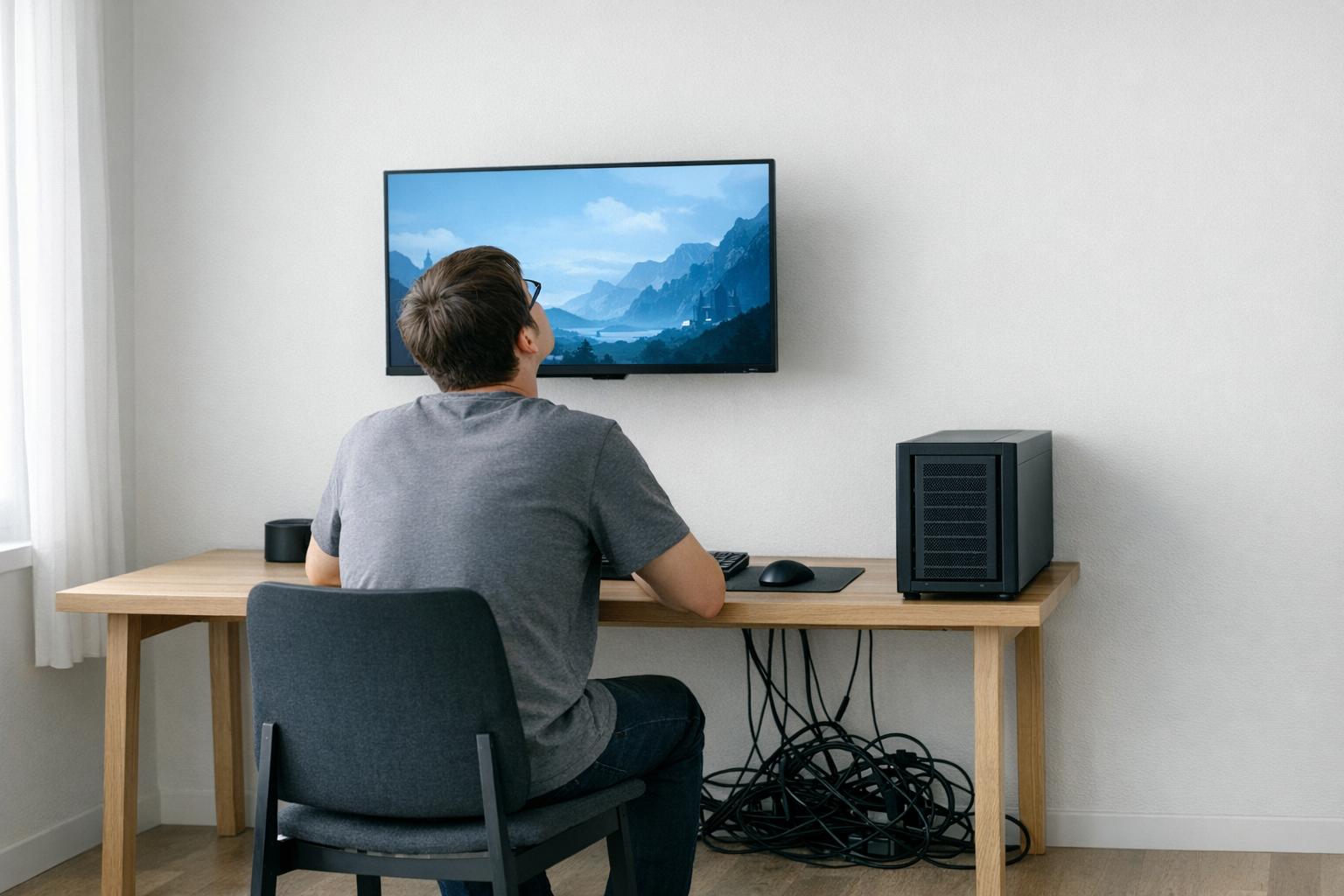
The Biggest Gaming Setup Mistakes Most People Make
Most gaming setups fail due to simple, avoidable mistakes. Poor monitor placement, bad airflow, messy cables, and uncomfortable chairs can ruin your gaming experience…
Historical guide — verify current detailsBest Free Online Gaming Platform in 2026: Why Zaphira Games Stands Out
Play instant free browser games on Zaphira Games in 2026. Enjoy fast-loading casual and multiplayer games with no downloads, mobile-friendly access, and a simple,…
Historical guide — verify current details