
Most people assume their files are safe once they appear in OneDrive, Google Drive, or iCloud. After all, the documents are stored online, they appear on multiple devices, and they remain accessible even when you’re away from your computer. It feels like having a backup, especially when everything happens automatically.
But the difference between cloud sync vs backup becomes important when something goes wrong. Accidentally deleting an important folder, overwriting a document, or getting hit by ransomware can reveal that having files synchronized across devices isn’t necessarily the same as having a separate, recoverable copy.
Cloud storage services provide useful recovery features, including trash folders, version history, and, in some cases, ransomware recovery. These protections can help you recover from many common mistakes. However, they have limitations, and depending on a single synchronized account may leave important files exposed to risks you haven’t considered.
Understanding how syncing and backups work can help you protect family photos, school assignments, financial records, and business documents without making your setup unnecessarily complicated.
Quick Answer: Cloud Sync vs Backup — What’s the Difference?
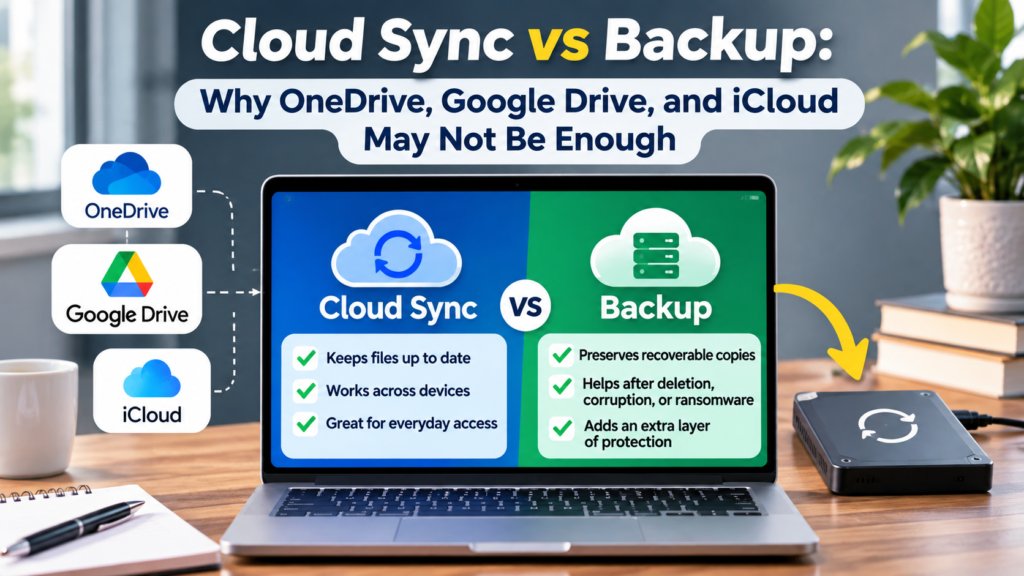
Cloud sync keeps files updated across devices, while a backup preserves recoverable copies of your data. Services such as OneDrive, Google Drive, and iCloud offer useful recovery tools, but deleted or damaged files can still become unrecoverable when retention periods expire or account access is lost. For stronger protection, combine cloud syncing with an independent backup stored on an external drive or separate backup service.
1. Cloud Sync vs Backup: Understanding the Difference
Cloud syncing and cloud backup are often discussed as though they do the same thing. Both involve storing information beyond your computer, and both can help you access files after a device failure. The difference lies in what happens when those files change.
A synchronization service is designed to keep selected files consistent across devices. If you edit a spreadsheet on your laptop, the updated version becomes available through the cloud and on other connected devices. If you add a photo or rename a folder, those changes are reflected wherever synchronization is enabled.
This convenience is why services such as OneDrive, Google Drive, and iCloud have become part of everyday computing. Instead of manually copying files between devices, users can work from a shared collection that stays reasonably up to date.
The challenge is that synchronization also processes changes you didn’t intend to make. If you delete a synchronized file, that deletion may be reflected in the cloud and on other connected devices. If a damaged or encrypted file replaces the original, the changed version may also be uploaded.
A backup works differently. Its purpose is to preserve copies that can be recovered after accidental deletion, corruption, device failure, or another data-loss event. A well-designed backup system retains historical versions or recovery points, allowing you to restore files as they existed before something went wrong.
This doesn’t mean every cloud backup service offers unlimited protection, or that cloud syncing has no recovery capabilities. The important distinction is that synchronization prioritizes keeping files consistent, while backup systems prioritize making previous data recoverable.
Cloud Sync vs Backup: Side-by-Side Comparison
| Feature | Cloud Sync | Dedicated Backup |
|---|---|---|
| Primary purpose | Keep files updated across devices | Preserve recoverable copies |
| File changes | Typically synchronize automatically | Captured according to backup settings |
| Accidental deletion | May synchronize to connected devices | Older copies may remain available |
| Previous versions | Depends on service and retention rules | Depends on backup policy |
| Ransomware protection | Recovery may be possible through version history | Independent, protected backups can provide additional recovery options |
| Device failure | Synced files can usually be accessed elsewhere | Files can be restored from backup |
| Offline recovery | Depends on locally available files | Possible with a local backup drive |
| Best use | Everyday access and collaboration | Long-term data protection and recovery |
For example, imagine you have a folder containing five years of family photos. You synchronize it with a cloud service so the photos are accessible from your laptop and phone. One afternoon, you accidentally delete the folder while organizing your files.
If the deletion synchronizes, the folder may disappear from your other devices as well. You might still be able to recover it through the service’s trash or recovery features, but that depends on how long the deleted files are retained and whether they remain recoverable.
If you also maintain a separate backup, you have another recovery option that doesn’t depend entirely on the synchronized folder.
2. Why Cloud Sync Is Not Always a Complete Backup
Cloud synchronization is useful because it removes much of the manual work involved in managing files. Once configured, documents and photos can become available across devices without requiring you to remember to copy them.
That convenience can create a false sense of security, particularly when users assume that anything stored online is permanently protected.
The problem isn’t that cloud storage services are unreliable. Many offer sophisticated infrastructure, security features, and recovery options. The issue is that the safety of your data also depends on your actions, account access, retention settings, and the types of problems you encounter.
Accidental Deletion Can Spread Across Devices
One of the most common risks is deleting a file without realizing that it belongs to a synchronized folder.
Suppose you remove an old project folder from your laptop because you think it’s taking up unnecessary space. If that folder is synchronized with OneDrive or Google Drive, the deletion may also affect the cloud copy.
You might not notice the mistake immediately. By the time you look for the files again, the service’s recovery window may have expired.
Fortunately, major cloud services provide ways to recover recently deleted files. The limitation is that these recovery mechanisms generally have retention rules rather than keeping deleted content indefinitely.
Unwanted Changes May Replace the Version You Need
Accidental deletion isn’t the only concern. Sometimes the file remains available, but its contents are no longer correct.
A student might overwrite an assignment with an incomplete version, or a business owner might accidentally remove important formulas from a spreadsheet. Because synchronization keeps files updated, the modified document may become the current version everywhere.
Version history can help in these situations, and many cloud services provide it. However, the availability and retention of older versions vary by service, file type, and account configuration.
A separate backup with historical recovery points provides another way to retrieve an earlier copy, particularly when the cloud service no longer retains the version you need.
Ransomware Can Affect Synchronized Files
Ransomware is another reason not to rely exclusively on synchronization. Some ransomware attacks encrypt files on an infected computer, making them unreadable until a ransom is paid.
If the affected files are inside a synchronized folder, the encrypted versions may be uploaded to the cloud. That doesn’t necessarily mean the cloud provider itself has been compromised; it may simply be synchronizing changes made on the infected device.
Some cloud services can help users recover previous versions after an attack. However, recovery depends on available versions, retention periods, account features, and whether the affected files can still be restored.
An independent backup that ransomware cannot easily modify or delete provides an additional layer of protection. This is particularly important for people who store financial documents, client records, or irreplaceable personal files on their computers.
Account Problems Can Complicate Recovery
Cloud services also depend on account access. Losing access to an account because of a security incident, authentication problem, or account restriction can temporarily or permanently prevent you from reaching files stored exclusively there.
This doesn’t mean cloud accounts are inherently unsafe. Strong passwords, multifactor authentication, and updated recovery information can significantly reduce certain risks.
Nevertheless, keeping a separate backup ensures that access to every important document doesn’t depend on one account or provider.
For individuals and small businesses evaluating different storage arrangements, understanding the distinction between syncing and backup is just as important as comparing the features of cloud storage services for individuals and small businesses. A service that is excellent for collaboration may still need to be paired with an independent recovery solution.
3. Cloud Sync vs Backup: What Happens When You Delete a File?
The consequences of deleting a file depend on where it is stored, how synchronization is configured, and which recovery features are available.
Consider a document saved inside a synchronized folder on your laptop. When you delete it, the synchronization software generally communicates that change to the cloud. Other devices connected to the same account may then reflect the deletion.
This behavior is intentional. Without it, synchronization would become confusing because deleted or outdated files could keep reappearing.
The difficulty arises when the deletion was accidental. Instead of simply opening another device to retrieve the original file, you may need to use the cloud provider’s recovery tools.
What Happens in OneDrive?
OneDrive provides a recycle bin that can help recover deleted files. For personal accounts, deleted items are generally retained for 30 days, while work or school accounts commonly have a longer retention period, subject to organizational settings.
OneDrive also offers version history for supported files, and eligible Microsoft 365 subscribers can restore their OneDrive to an earlier point within a 30-day window. These tools can be valuable after accidental changes, corruption, or certain ransomware incidents.
However, permanently deleted files may no longer be recoverable through OneDrive’s normal recovery tools. This is why Microsoft’s official OneDrive file recovery guidance distinguishes between restoring recently deleted items, previous versions, and an entire OneDrive.
For someone who notices a mistake quickly, these features may be enough. The risk increases when data loss goes unnoticed until the recovery period has passed.
What Happens in Google Drive?
Google Drive also includes a trash folder for deleted files. Files normally remain there for 30 days before being permanently deleted, although additional recovery options may apply in certain circumstances.
Google Drive provides version management for uploaded files, while Google Docs, Sheets, and Slides use their own version history features. This can help users recover earlier content after unwanted edits.
However, version retention isn’t unlimited for every file type. Older uploaded-file versions may eventually be removed unless they are specifically preserved.
Google’s file version history documentation explains how users can review changes, manage versions, and preserve older copies when needed.
The important lesson is that Google Drive offers meaningful recovery capabilities, but users shouldn’t assume that every deleted file or previous version will remain available indefinitely.
What Happens in iCloud Drive?
iCloud Drive synchronizes supported files across Apple devices and provides recovery options for recently deleted content.
If you delete a file from iCloud Drive, that change can be reflected on other devices using the same Apple Account. Apple provides a Recently Deleted area where eligible files can generally be recovered for up to 30 days.
This can be particularly useful when someone accidentally removes a document while organizing files on an iPhone, iPad, or Mac.
However, iCloud Drive isn’t a complete replacement for a separate Mac backup. It primarily helps keep files accessible and synchronized, whereas a tool such as Time Machine can preserve historical copies of files and other supported Mac data.
For Mac users, combining iCloud Drive with a properly configured backup provides more comprehensive protection than relying on synchronization alone.
4. Cloud Sync vs Backup: Which Files Need Extra Protection?
Not every file requires the same level of protection. A temporary download that can easily be obtained again is different from a collection of family photographs or years of business records.
For most people, the priority should be files that would be difficult, expensive, or impossible to recreate.
Family photos and personal videos are obvious examples. Once original memories are lost, downloading the same files again may not be possible. School projects, research papers, and professional portfolios can also represent months or years of work.
Financial documents, tax records, contracts, and client information deserve additional attention because losing them can create practical and legal difficulties. Businesses may also need to consider confidentiality, access controls, and retention requirements when selecting backup methods.
It’s useful to think about how long you could comfortably go without a particular file and how much work would be required to recreate it. The harder a file is to replace, the more important it becomes to maintain a separate recoverable copy.
Cloud synchronization can remain part of this arrangement. You don’t need to stop using OneDrive, Google Drive, or iCloud simply because they aren’t complete backup solutions. The goal is to avoid making any one synchronized folder your only source of protection.
5. How to Combine Cloud Sync and Backup for Better File Protection
The good news is that you don’t have to choose between cloud syncing and traditional backups. In fact, using both is often the most practical approach for protecting important files without sacrificing everyday convenience.
Cloud synchronization makes it easy to access documents across devices, collaborate with other people, and continue working when you switch computers. A separate backup provides another way to recover your data if something goes wrong with those synchronized files.
For example, you might use OneDrive to keep work documents available on your laptop and desktop computer while maintaining a separate backup on an external hard drive. If you accidentally delete a synchronized folder and don’t discover the mistake until the cloud service’s recovery period has expired, the external backup may still contain the missing files.
The important detail is independence. A backup should not simply be another folder that synchronizes the same changes. Ideally, it should preserve older versions and remain protected from accidental deletion, malware, or unauthorized changes affecting your main files.
Keep Your Cloud Sync Service for Everyday Work
There’s no reason to abandon OneDrive, Google Drive, or iCloud if they already fit your workflow. These services are useful for keeping documents accessible, sharing files, and working across multiple devices.
The key is understanding what they’re designed to do. Synchronization keeps your working files consistent, while a separate backup protects against situations where the synchronized version is no longer usable.
You can continue storing frequently used documents in synchronized folders while arranging for those files to be included in an independent backup. Just make sure your backup software can actually access the files. Some cloud services use online-only placeholders, which means a file may appear in a folder without its full contents being stored locally.
Add an External Drive Backup
An external hard drive or SSD is one of the simplest ways to create an additional copy of important files. External drives are widely available, don’t require an ongoing cloud subscription, and can provide relatively fast recovery when a laptop fails.
However, copying files manually every few months isn’t always enough. If you forget to update the drive, your most recent work may be missing when you need it.
A scheduled backup is usually more dependable. Backup software can regularly copy selected files or maintain historical versions, depending on the tool and configuration.
It’s also important to disconnect or otherwise protect the backup drive when it isn’t needed. A drive that remains connected and writable all the time may be vulnerable to certain malware attacks or accidental changes.
For Windows users, there are several ways to back up important files and recover them when needed, including built-in tools and external storage options.
Consider a Separate Cloud Backup Service
External drives are useful, but they have limitations. A fire, flood, theft, or other incident affecting your home or office could damage both your computer and a backup drive stored beside it.
A separate cloud backup service can provide an off-site copy that isn’t dependent on the same physical location.
Unlike ordinary file synchronization, dedicated backup services may offer scheduled backups, historical versions, device recovery, and configurable retention policies. The exact features vary, so it’s important to review how long deleted files and older versions remain available.
Some services also provide options to protect backup data from unauthorized modification or deletion. These protections can be particularly valuable when recovering from ransomware.
You don’t necessarily need an expensive backup subscription. The right solution depends on how much data you have, how often it changes, and how quickly you would need to restore it.
6. Cloud Sync vs Backup: Understanding the 3-2-1 Backup Rule
One of the most widely used approaches to data protection is the 3-2-1 backup rule. It provides a straightforward framework for reducing the risk of losing everything because of one failure.
The traditional rule recommends keeping three copies of important data, using two different types of storage, with at least one copy stored off-site.
For an everyday laptop user, that might mean keeping the original files on the computer, a backup on an external drive, and another independent backup in the cloud.
The purpose isn’t simply to collect copies. It’s to avoid depending on a single device, storage location, or account.
Example of a Simple 3-2-1 Backup Setup
| Copy | Storage location | Purpose |
|---|---|---|
| Original files | Laptop or desktop | Everyday work |
| First backup | External HDD or SSD | Local recovery |
| Second backup | Independent cloud backup | Off-site protection |
Cloud synchronization can still be part of this setup, but it shouldn’t automatically be counted as a fully independent backup. Whether a cloud copy qualifies depends on its version history, retention settings, and protection against unwanted changes.
For example, keeping a document on your laptop and synchronizing it to another computer doesn’t necessarily provide two independent recovery options. If an accidental deletion propagates to both devices, neither may retain the version you need.
A more resilient arrangement preserves copies that aren’t automatically overwritten whenever the original changes.
The 3-2-1 rule is a useful starting point, although people handling especially important information may need additional safeguards. These can include offline copies, protected backups, encryption, and regular recovery testing.
7. How to Set Up Cloud Sync and Backup on Windows
Windows users can combine Microsoft OneDrive with local or independent cloud backups without making their workflow overly complicated.
Start by identifying where your important files are stored. Documents, Desktop, Pictures, and other personal folders may contain information worth protecting. If you’re using OneDrive folder backup, some of these locations may already be synchronized automatically.
Next, decide which files need an additional recoverable copy. Family photographs, financial records, school assignments, and work documents are good starting points. You may also want to include files stored outside your synchronized folders.
For local protection, Windows offers backup-related features such as File History, although availability and setup options depend on your Windows version and configuration. Third-party backup applications may provide additional capabilities, including full-system imaging, scheduled backups, and longer retention policies.
An external drive can serve as the backup destination. Choose one with enough capacity to store your important files and retain previous versions where supported.
One detail that is easy to overlook is OneDrive’s Files On-Demand feature. Files marked as online-only may not be fully stored on your computer, so local backup software may not capture their contents unless they’re downloaded first. Check whether your chosen backup method supports these files and confirm that the resulting backup contains usable copies.
Once everything is configured, perform a small recovery test. Restore a document to a different folder, open it, and confirm that its contents are intact. This simple step can reveal configuration problems before a real emergency occurs.
8. How to Set Up Cloud Sync and Backup on Mac
Mac users can take a similar approach by combining iCloud Drive with Time Machine or another independent backup solution.
iCloud Drive is useful for keeping documents accessible across Apple devices. If you enable Desktop and Documents syncing, files from those locations can become available through iCloud and other devices connected to your Apple Account.
However, synchronization isn’t the same as maintaining a separate historical backup. Changes and deletions can still propagate between connected devices.
Time Machine is Apple’s built-in backup feature for Mac. When configured with a suitable external storage device, it can maintain historical backups that allow users to recover earlier versions of files or restore supported data after a problem.
The combination is practical because each service serves a different purpose. iCloud Drive helps you access current files across devices, while Time Machine provides an additional recovery option.
There is one important consideration when using iCloud’s Optimize Mac Storage feature. Some files may be stored primarily in iCloud rather than downloaded locally. Before relying on Time Machine to protect those files, confirm that the files you want backed up are available locally and included in the backup.
Users with particularly valuable data may also want an off-site backup in case both the Mac and its external drive are lost or damaged.
Whether you use Windows or macOS, the goal is the same: maintain at least one reliable recovery option that doesn’t depend entirely on your synchronized cloud account.
9. Common Backup Mistakes That Put Your Files at Risk
Even people who understand the importance of backups can make mistakes that leave their data vulnerable. Most problems aren’t caused by choosing the wrong brand of storage service. They happen because the backup process isn’t configured, maintained, or tested properly.
One common mistake is assuming that copying files to another folder on the same laptop creates a meaningful backup. While this may protect against accidentally editing the original, it won’t help much if the laptop’s storage fails or the device is stolen.
Another is keeping an external backup drive permanently connected without additional protection. Although this makes scheduled backups convenient, it may also leave the drive exposed to certain malware attacks or accidental deletion.
Some users also overlook backup retention. A backup system that automatically replaces older copies may not help if a corrupted file goes unnoticed for several weeks. Keeping historical versions can be important when problems aren’t discovered immediately.
Finally, many people never test their backups. They see a successful backup notification and assume everything is protected, only to discover during an emergency that important folders were excluded or that certain files cannot be restored.
This is why a broader cloud disaster recovery plan can be useful even for small organizations. The goal isn’t merely to store copies of files but to understand how those files can be recovered when normal access is interrupted.
A backup is most valuable when you’ve confirmed that it actually works.
10. How to Choose the Right Backup Setup for Your Needs
The best backup arrangement depends on the files you store, the devices you use, and how much effort you’re willing to put into maintaining the system.
For someone who mainly stores personal documents and photographs, cloud syncing combined with a regularly updated external drive may provide a practical level of protection. The setup is relatively simple and doesn’t necessarily require multiple paid subscriptions.
Students may benefit from a similar arrangement, especially when working on lengthy assignments, research projects, or portfolios. Losing a final paper shortly before a deadline can be stressful, and relying only on a synchronized folder may not provide enough recovery options.
Freelancers and remote workers often have additional responsibilities. Client documents, contracts, invoices, and project files may need stronger protection because losing them can affect both income and professional relationships. In these situations, an independent off-site backup may be worth considering.
Small businesses should also evaluate how quickly they need to recover data after an incident. Restoring a few documents is very different from recovering an entire workstation or a shared collection of business files.
Before choosing a solution, ask yourself how much data you need to protect, how frequently it changes, and how long you could manage without it. Also consider whether you need full-device recovery or simply the ability to restore individual files.
The right backup system doesn’t have to be complicated. It needs to be reliable, manageable, and appropriate for the consequences of losing your data.
Frequently Asked Questions
Is OneDrive a backup or a sync service?
OneDrive is primarily a cloud storage and synchronization service, although it includes useful recovery features such as a recycle bin, version history, and certain restore capabilities. It can protect against some types of data loss, but an independent backup provides additional protection when files are permanently deleted or account access is lost.
Is Google Drive enough to back up my laptop?
Google Drive can store important files and synchronize selected folders, but it doesn’t automatically provide a complete, independently recoverable backup of everything on your laptop. For broader protection, consider combining it with a separate backup system that retains historical copies.
Does iCloud automatically back up everything on my Mac?
No. iCloud Drive synchronizes selected files and folders, while other iCloud features protect certain types of Apple data. It isn’t a complete replacement for a Mac backup. Time Machine or another dedicated backup solution can provide additional recovery options.
Can ransomware affect files stored in OneDrive or Google Drive?
Yes. If ransomware encrypts files in a synchronized folder, the changed files may be uploaded to the cloud. Version history and recovery features may help restore earlier copies, but their effectiveness depends on the service, retention settings, and available recovery points.
What is the difference between cloud sync and cloud backup?
Cloud sync keeps files consistent across devices, while cloud backup is designed to preserve recoverable copies. Syncing prioritizes access to current files, whereas backup systems focus on restoring data after deletion, corruption, or device failure.
Do I still need an external hard drive if I use cloud storage?
An external drive isn’t the only way to create an independent backup, but it can provide a useful additional layer of protection. Local backups can also make restoring large amounts of data faster and reduce dependence on an internet connection.
How often should I back up my laptop?
The appropriate frequency depends on how often your files change and how much work you could afford to lose. Daily backups may be suitable for active work documents, while less frequently updated personal files may need a different schedule. Automated backups are generally easier to maintain consistently than manual copying.
Can I use OneDrive and an external backup together?
Yes. OneDrive can synchronize your current files across devices, while an external backup can preserve separate recovery copies. Make sure your backup software includes the intended files, especially when OneDrive uses online-only storage.
Final Thoughts: Cloud Sync vs Backup
Understanding cloud sync vs backup is less about choosing one technology over another and more about knowing what each is designed to protect.
OneDrive, Google Drive, and iCloud are valuable tools for keeping files accessible, sharing documents, and working across devices. Their recovery features can also help when files are accidentally deleted or changed. For many everyday problems, these capabilities are genuinely useful.
However, synchronization alone doesn’t guarantee that an older copy of a file will always be available. Recovery periods can expire, unwanted changes can spread across devices, and account problems can complicate access to important information.
A separate backup adds another layer of protection by preserving recoverable copies outside your normal synchronization workflow. Whether that means using an external drive, a dedicated cloud backup service, or a combination of both depends on your needs.
You don’t need an elaborate system to get started. Keeping your cloud sync service for everyday convenience while maintaining an independent, regularly tested backup can significantly reduce the risk of losing files that matter most.
Did this solve your problem?
Your answer helps Supportia prioritize updates. No account or email is required.
Related guides
How to Choose a Portable Power Station for Home Backup and Emergencies
Learn how to choose a portable power station for home backup. Compare battery capacity, wattage, runtime, and charging options to find the right fit.
Historical guide — verify current detailsBest Cloud Storage Services for Individuals and Small Businesses in 2026
Cloud storage has become an essential part of both personal and professional life. Whether you're backing up family photos, collaborating on business documents, sharing…
Historical guide — verify current detailsBest Free Online Gaming Platform in 2026: Why Zaphira Games Stands Out
Play instant free browser games on Zaphira Games in 2026. Enjoy fast-loading casual and multiplayer games with no downloads, mobile-friendly access, and a simple,…
Historical guide — verify current details